
Creating deal flows
Deal flows define your sales processes. Each deal flow is a sequence of stages that deals move through from first contact to close. Create different flows for different sales channels — inbound leads might follow a different process than outbound sales or partnership referrals.
Understanding deal flows
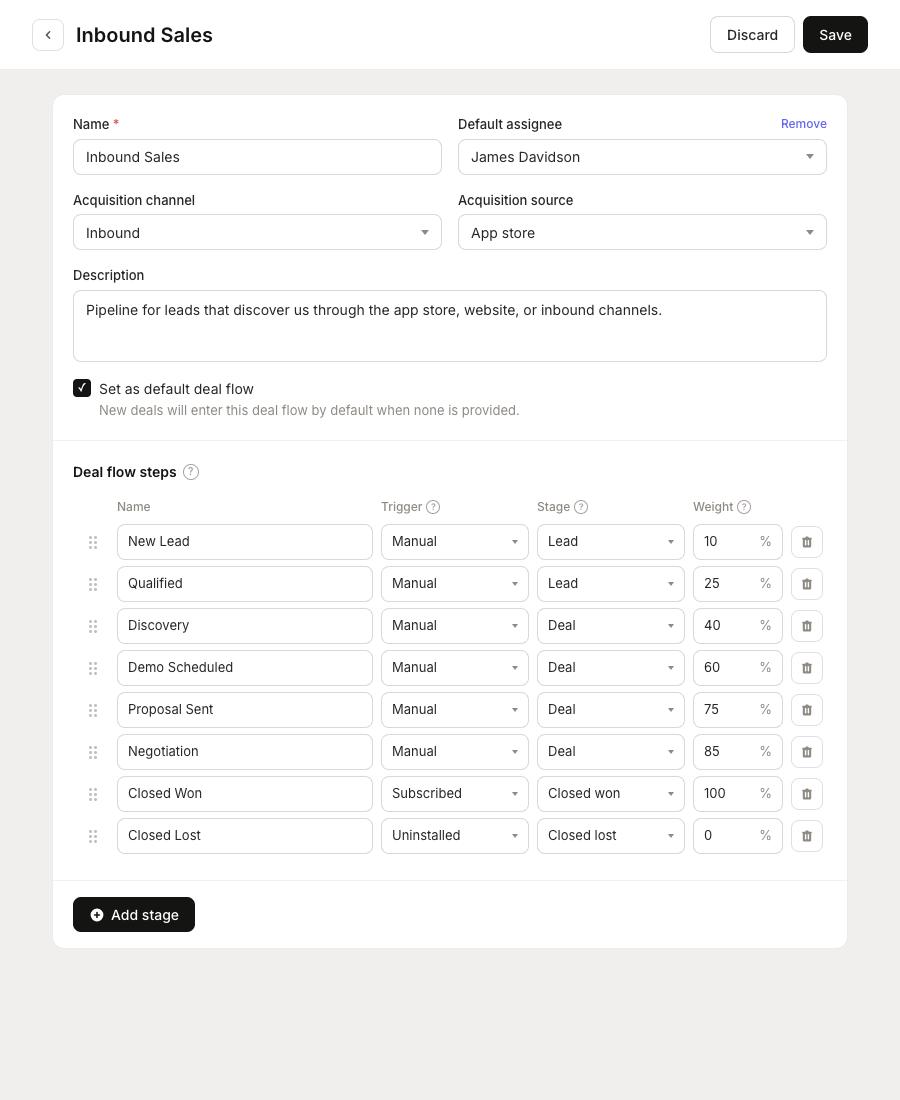
A deal flow consists of:
- Name and description – Identify the flow (e.g., "Inbound Sales Pipeline")
- Stages – The steps deals move through (e.g., "Discovery", "Demo", "Proposal")
- Default settings – Pre-filled values for deals created in this flow
Deal flows vs. standard stages
Mantle has two ways to organize deals:
- Standard lifecycle stages – High-level categories (Prospect, Lead, Deal, Closed Won, etc.) that apply to all deals
- Custom deal flow stages – Your specific sales steps that map to lifecycle stages
Each custom stage you create maps to a standard lifecycle stage. This lets you define detailed processes while maintaining consistent reporting across all deals.
Creating a deal flow
To create a new deal flow:
- Go to Sales > Settings > Deal Flows
- Click Create deal flow
- Configure the flow settings and stages
- Save the flow
Using templates
Mantle offers pre-built templates to get you started quickly. When creating a flow, check "Start with a standard template" to choose from:
- Default – A simple SDR pipeline for general sales (Lead, Deal, Customer, Closed lost, Churned)
- Shopify App Store – Designed for app store leads with automatic stage transitions based on install, trial, and subscription events
- HubSpot – Familiar stages for teams coming from HubSpot CRM (Appointment scheduled, Qualified to buy, Contract sent, Closed won/lost)
- Salesforce – Familiar stages for teams coming from Salesforce CRM (Prospect, Demo or engagement, Proposal sent, Opportunity won/lost)
Templates pre-configure stages, acquisition channels, and descriptions. Each template sets a default acquisition channel (for example, the Shopify App Store template defaults to Inbound with an App Store source, while the Default template defaults to Outbound), but you can change the channel and customize everything else after creation.
Deal flow settings
| Setting | Description |
|---|---|
| Name | The flow name (appears as a tab in the pipeline) |
| Description | Internal notes about when to use this flow |
| Default assignee | Team member automatically assigned to new deals in this flow |
| Default acquisition channel | Pre-selected channel for deals in this flow |
| Default acquisition source | Pre-selected source for inbound deals |
| Set as default | Make this the default flow for new deals |
Tip: Your first deal flow is automatically set as the default. You can change this later.
Configuring stages
Stages are the heart of a deal flow. Each stage represents a step in your sales process.
Adding stages
Click Add stage to create a new stage. Configure:
| Setting | Description |
|---|---|
| Name | Stage name (e.g., "Discovery Call") |
| Description | What happens at this stage |
| Lifecycle stage | Which standard stage this maps to (Lead, Deal, Closed Won, etc.) |
| Probability | Win probability at this stage (used for weighted pipeline) |
| Activities | Expected activities at this stage |
Stage order
Drag stages to reorder them. The order determines:
- How stages appear in the pipeline board (left to right)
- The expected progression path for deals
- Display order in dropdowns and reports
Lifecycle stage mapping
Every custom stage must map to a standard lifecycle stage:
| Lifecycle Stage | When to use |
|---|---|
| Prospect | Early stages where you're still qualifying |
| Lead | Qualified opportunities ready for engagement |
| Deal | Active sales stages (demo, proposal, negotiation) |
| Closed Won | Successfully closed deals |
| Closed Lost | Deals that didn't close |
| Onboarding | Post-sale setup and activation |
| Expansion | Upsell and cross-sell opportunities |
Stage probability
Set a win probability for each stage (0-100%). This is used to calculate weighted pipeline value:
Weighted Value = Deal Amount x Stage Probability
For example, a $10,000 deal at a 50% probability stage contributes $5,000 to your weighted pipeline.
Note: Closed Won stages should be 100%. Closed Lost stages should be 0%.
Automatic stage transitions
You can configure stages to automatically move deals when specific app events occur. For example, when a customer subscribes to a paid plan, their deal can automatically move to "Closed Won" — no manual dragging required.
To set this up, select an app event on the stage configuration. When that event fires for a deal's customer, the deal moves to that stage automatically.
Common examples:
- Subscribed moves to Closed Won
- Uninstalled moves to Closed Lost or Churned
- Upgraded moves to an Expansion stage
Tip: Automatic stage transitions keep your pipeline accurate without relying on your team to manually update every deal. Pair them with Slack notifications via Flows so your team knows when deals move.
Example deal flows
Inbound sales flow
For leads that come to you through your website or app store:
- New Lead (Lead, 10%) – Just came in, needs qualification
- Qualified (Lead, 25%) – Confirmed fit and interest
- Discovery (Deal, 40%) – Understanding their needs
- Demo Scheduled (Deal, 60%) – Product demonstration booked
- Proposal Sent (Deal, 75%) – Pricing and proposal delivered
- Negotiation (Deal, 85%) – Working out terms
- Closed Won (Closed Won, 100%) – Deal completed
- Closed Lost (Closed Lost, 0%) – Did not convert
Outbound sales flow
For proactive outreach to prospects:
- Identified (Prospect, 5%) – Target account identified
- Contacted (Prospect, 10%) – Initial outreach sent
- Engaged (Lead, 20%) – Responded positively
- Meeting Set (Lead, 35%) – First meeting scheduled
- Opportunity (Deal, 50%) – Confirmed opportunity
- Proposal (Deal, 70%) – Proposal in progress
- Closing (Deal, 85%) – Final negotiation
- Won (Closed Won, 100%)
- Lost (Closed Lost, 0%)
Managing deal flows
Editing a deal flow
Go to Sales > Settings > Deal Flows and click on a flow to edit it. You can:
- Change the name and description
- Update default settings
- Add, edit, or reorder stages
- Set a different default deal flow
Warning: Changing stage names or order affects how existing deals display. The deals themselves aren't changed, but the pipeline view will reflect the new structure.
Deleting a deal flow
You can delete a deal flow if it has no active deals. Flows with existing deals can be archived instead.
When you delete a flow:
- The flow no longer appears in the pipeline tabs
- Deals must be moved to a different flow before deletion
Best practices
Start simple
Begin with one or two deal flows. Add more as your sales operation grows and you identify distinct processes.
Keep stages meaningful
Each stage should represent a clear milestone. If two stages often get skipped, consider combining them.
Set realistic probabilities
Base stage probabilities on your actual conversion rates. Review and adjust them periodically based on real data.
Use clear naming
Stage names should be obvious to anyone on your team. "Demo Complete" is clearer than "Stage 4".
Next steps
- Working with deals – Create and manage deals in your flows
- Managing your pipeline – Use the pipeline board with your deal flows