

Flex billing
Mantle’s Flex Billing transforms how you handle recurring charges for tiered pricing structures by automating plan upgrades based on customer usage. This solves a common challenge with traditional subscription models where customers need to manually upgrade when they hit usage limits.
Understanding flex billing
In traditional subscription models:
Customers must manually upgrade when they hit usage limits
This requires multiple steps and approvals
Service often gets interrupted while waiting for upgrades
Apps must decide whether to stop service, wait for upgrades, or absorb costs
Flex billing solves these challenges by:
Using usage charges to simulate recurring subscriptions
Enabling automatic upgrades without manual intervention
Allowing usage to continue seamlessly from where it left off
Maintaining clear communication about changes
Key benefits
Automatic plan upgrades
Customers automatically move to higher tiers when usage thresholds are met
No manual intervention required
Clear customer communication about changes
Continuous usage tracking
Usage doesn’t reset monthly
Smooth transitions between billing cycles
No interruption in service
Flexible billing
Multiple plans under the same usage charge approval
Automatic upgrades as thresholds are reached
Simple administration
Seamless billing experience
Customers remain on upgraded plans for next cycle
No threshold resets
Predictable billing patterns
Setting up flex billing
Let’s create an example with three tiers:
Up to 250 orders: $19.99/month
Up to 500 orders: $39.99/month
Over 500 orders: $59.99/month
Step 1: Configure app-level usage settings
Navigate to Your app → Settings and configure your usage billing preferences:
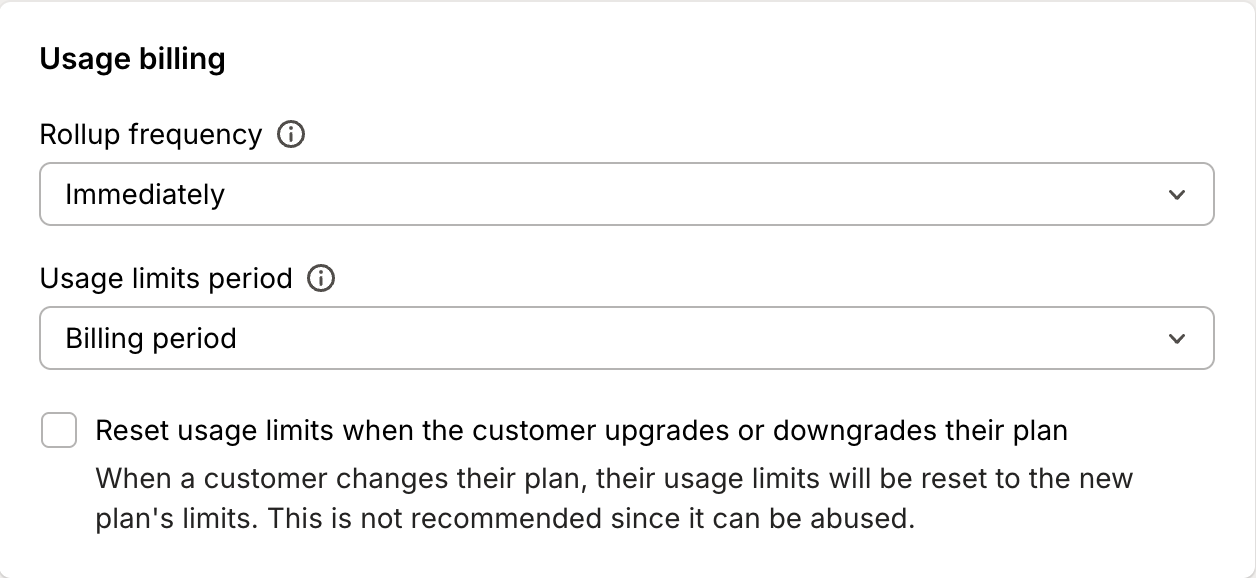
Important settings for flex billing:
Usage limits period: Choose between billing period or calendar month tracking
Billing period: Usage resets with each customer’s billing cycle
Calendar month: Usage resets on the 1st of each month for all customers
Rollup frequency: Determines how often usage is evaluated for plan upgrades
More frequent evaluation means faster plan upgrades when thresholds are met
Consider your upgrade timing preferences when choosing frequency
For detailed information about these settings, see our usage-based pricing documentation.
Step 2: Create your first plan
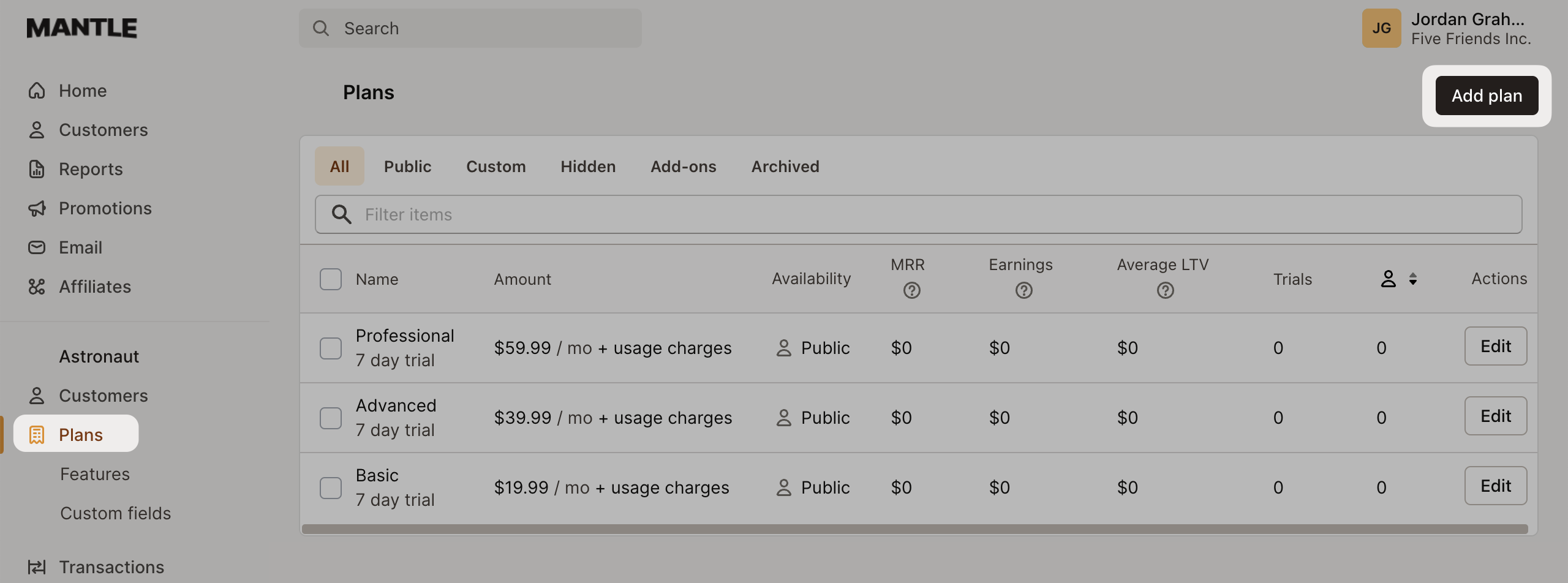
Navigate to Plans and select Add plan:
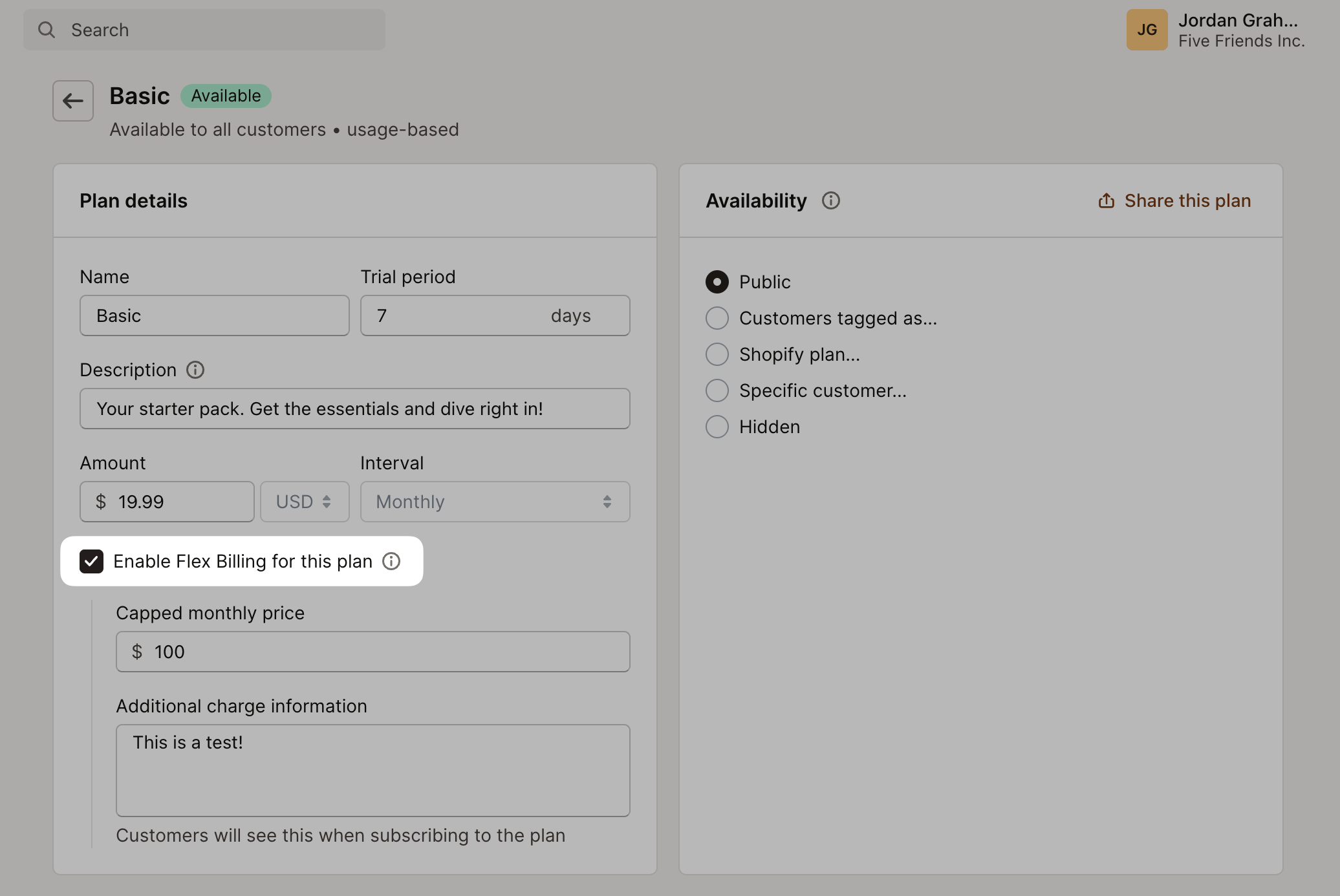
Enter your plan details
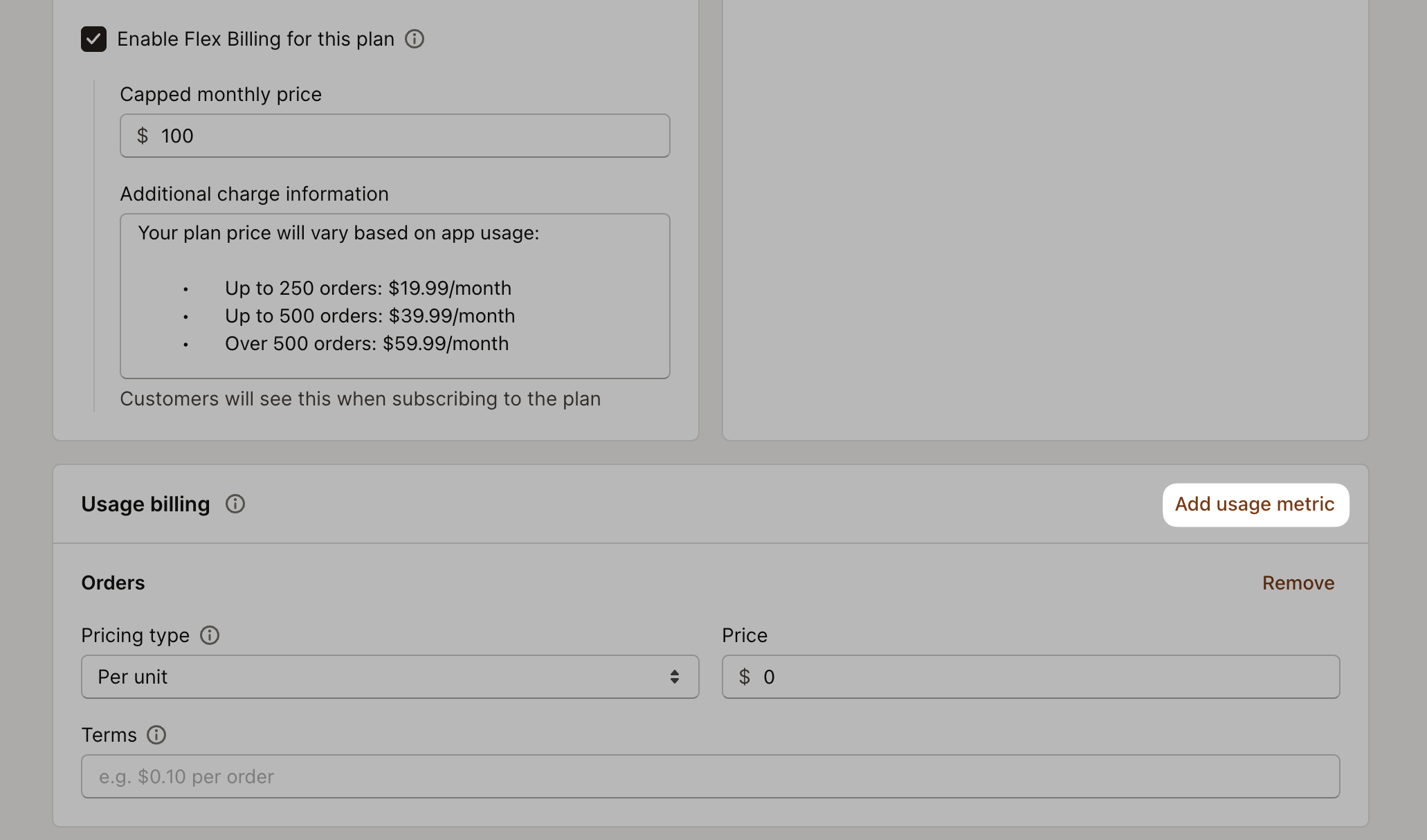
Enable flex billing by checking Enable flex billing for this plan:
Configure flex billing settings:
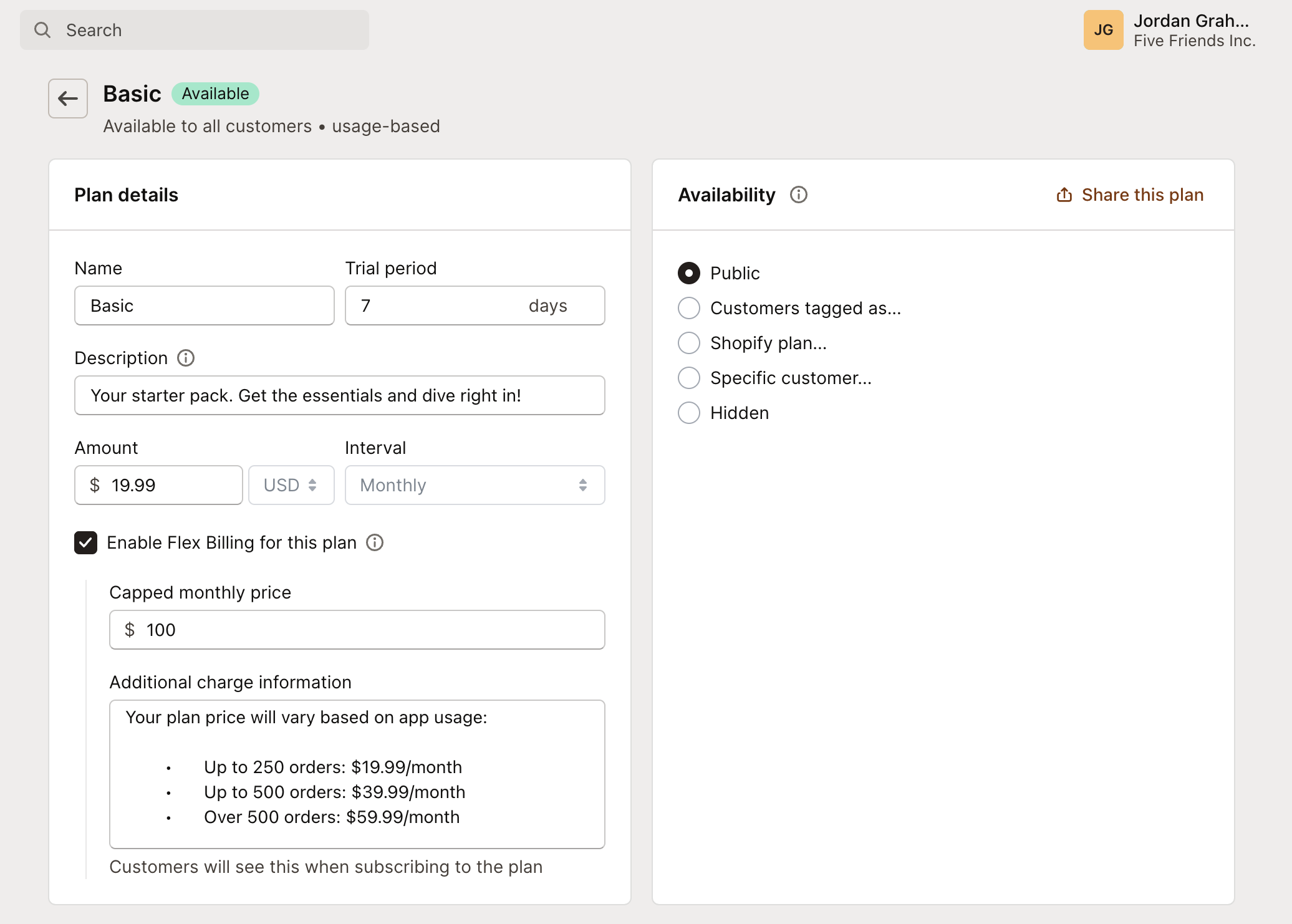
Capped monthly price: The maximum monthly price you can charge a customer for this plan.
Additional charge information: Additional information about the plan you want to display to the customer on the charge acceptance screen.
Step 3: Set up usage metrics
Once your usage events are in Mantle and have been consolidated into a usage metric, you can assign this metric to a plan. This will measure the events and determine when flex billing upgrades should occur.
To do this, go to the same plan settings, navigate to the Usage billing section, and click Add usage metric. Then, associate the usage metric you want to include in the plan:
Step 4: Configure thresholds
For the Basic plan, which covers up to 250 orders at $19.99/month, we’ll set the threshold from 0 to 250. This ensures that if a customer exceeds 250 orders, flex billing will move them to the next plan.
Set the Pricing Type to Per Unit with Limits. If you want to charge for regular usage in addition to your plan, you can enter a price for your usage and the terms associated:
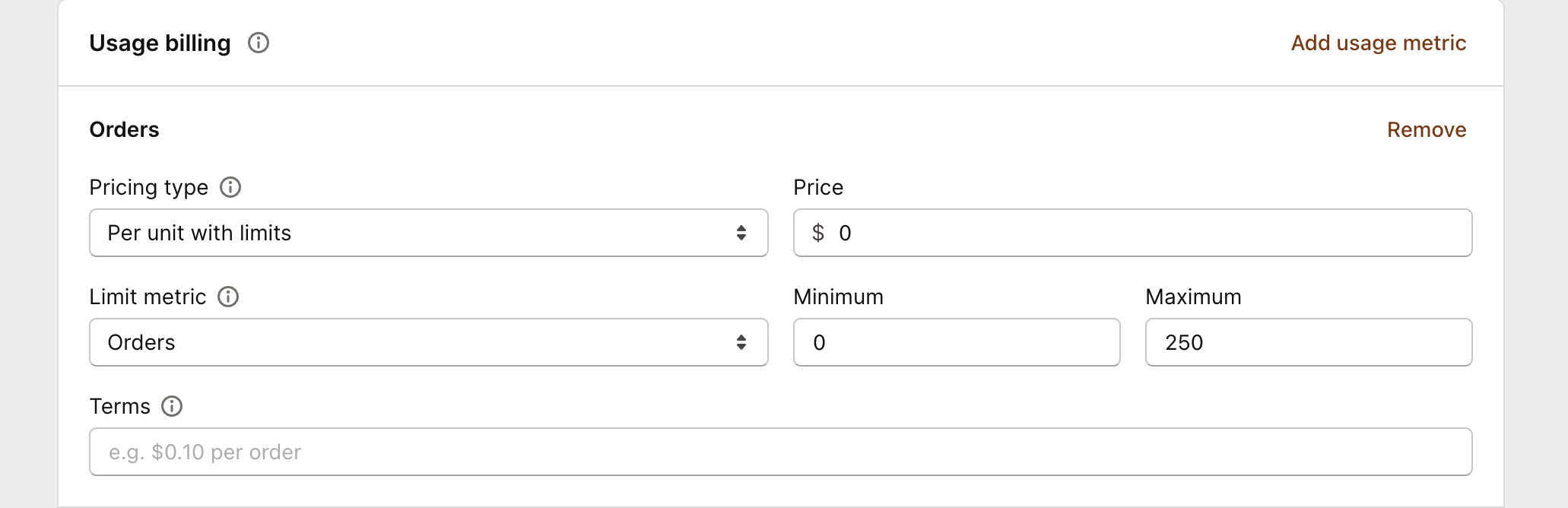
In our example, we are strictly using plan charges, not combining plan prices with per-usage charges (i.e., the plan price is based on usage rather than a combination of usage price and plan price).
Step 5: Create additional tiers
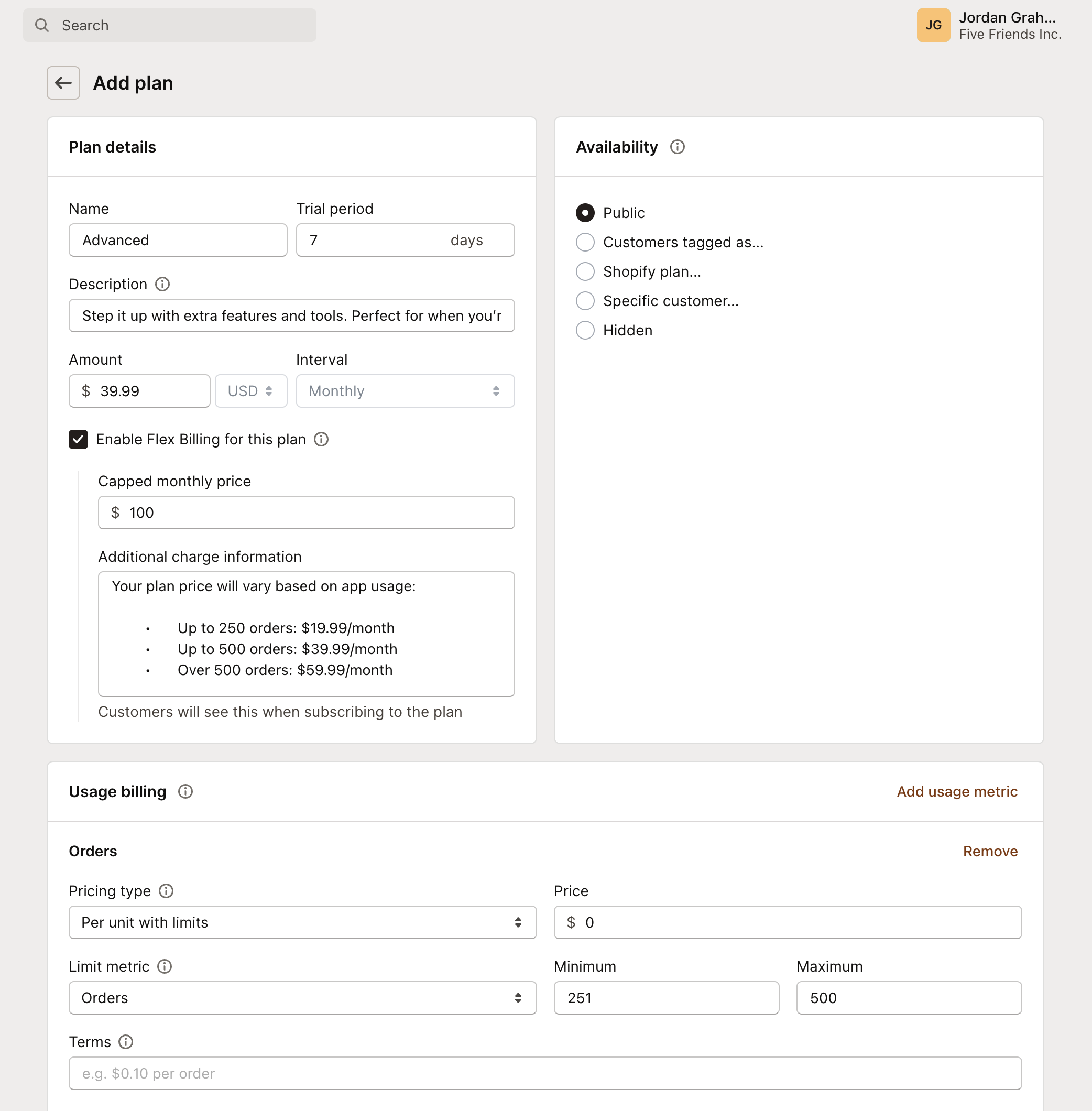
Now create your Advanced plan at $39.99/month with the same settings as the first plan. The only difference is that instead of the threshold being 0-250 orders, we’ll set it to 251-500 orders:
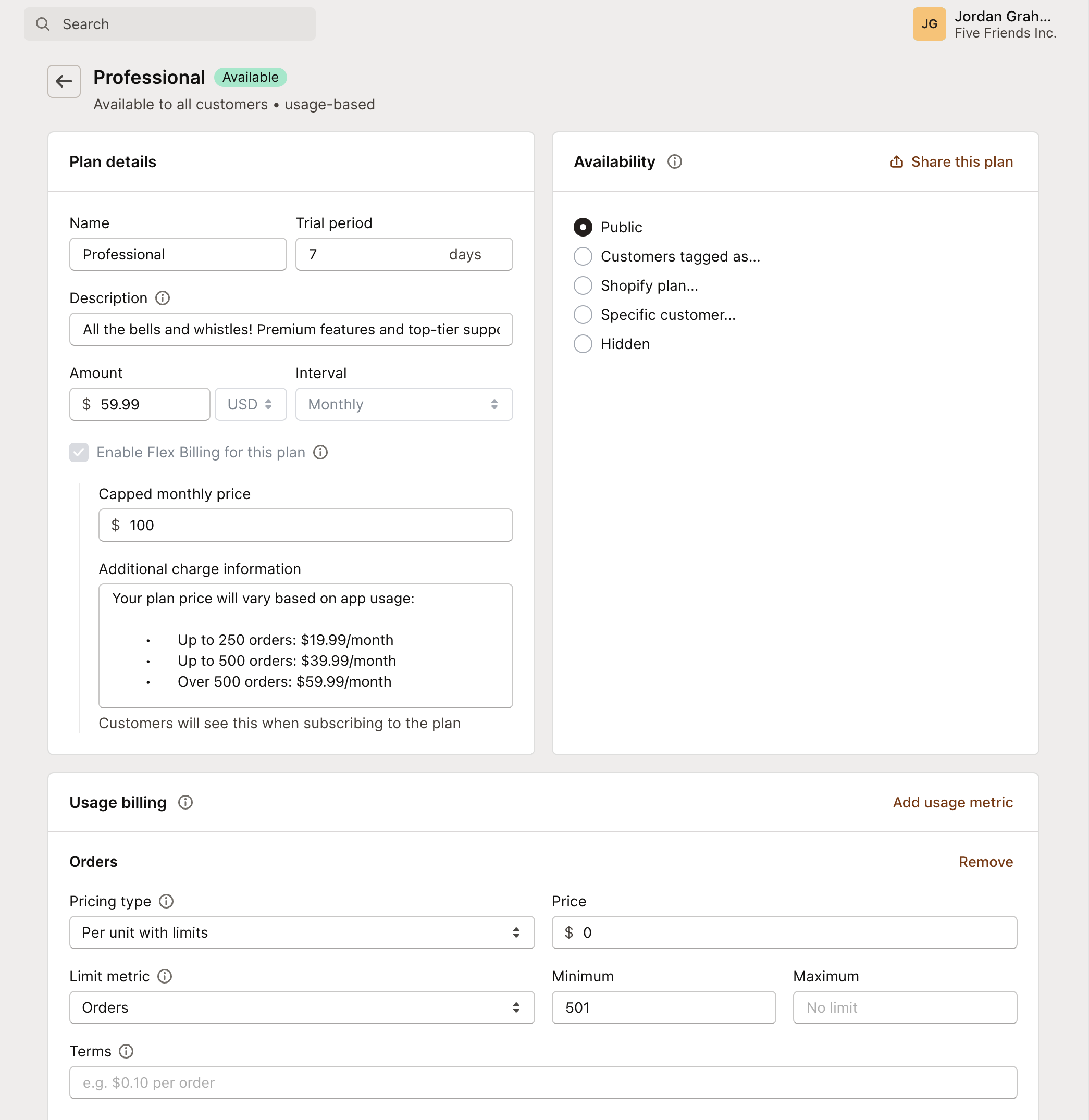
Apply the same process for the third plan, priced at $59.99/month. Set the threshold to a minimum of 501, and leave the maximum field blank to make it unlimited:
Step 6: Link upgrade paths
Now that we have our plans set up, we can configure which plan customers should upgrade to when they reach their usage thresholds.
Navigate to Plans -> select your plan (in our case Basic) and click Edit:
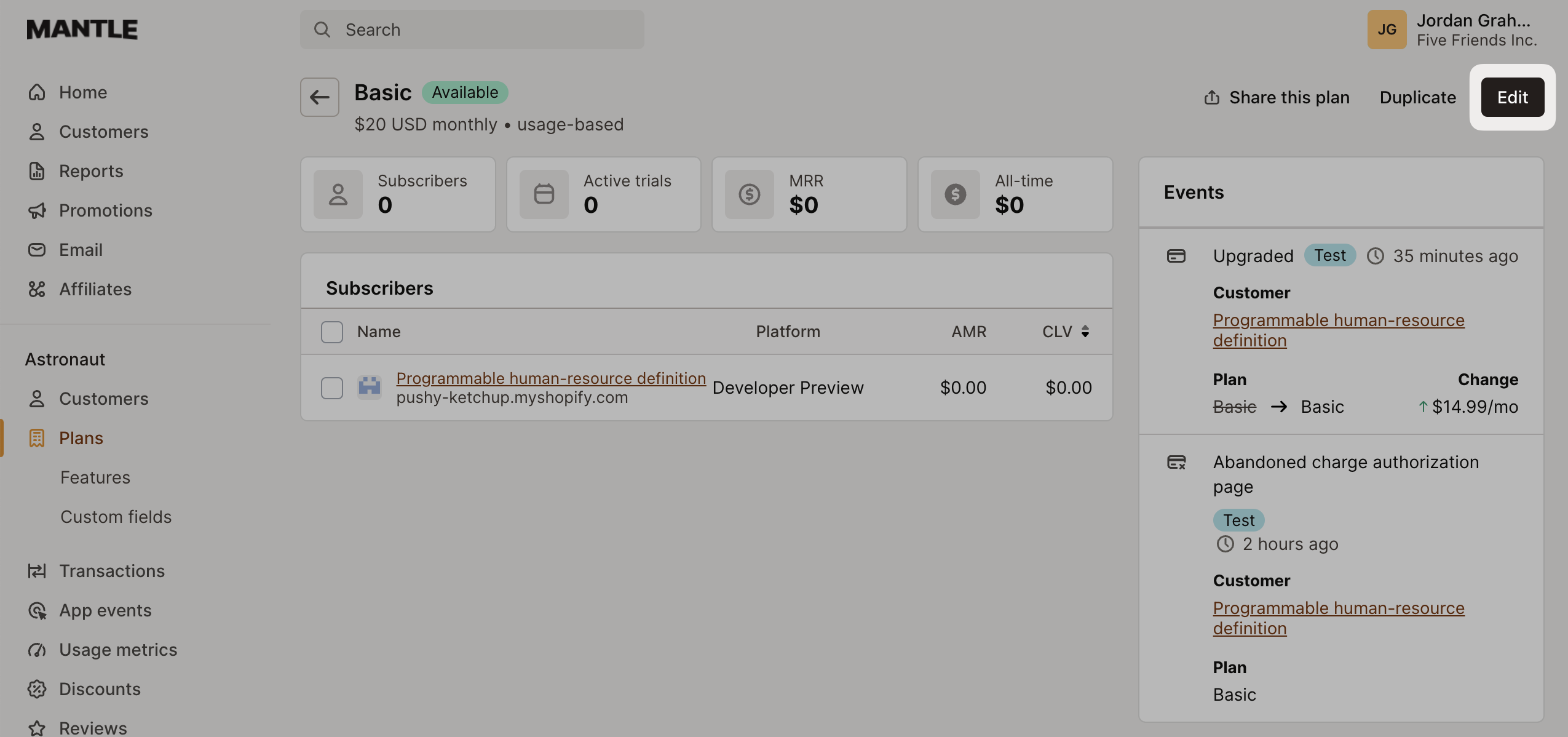
To enable automatic plan upgrades, check the box labeled Usage charge settings:
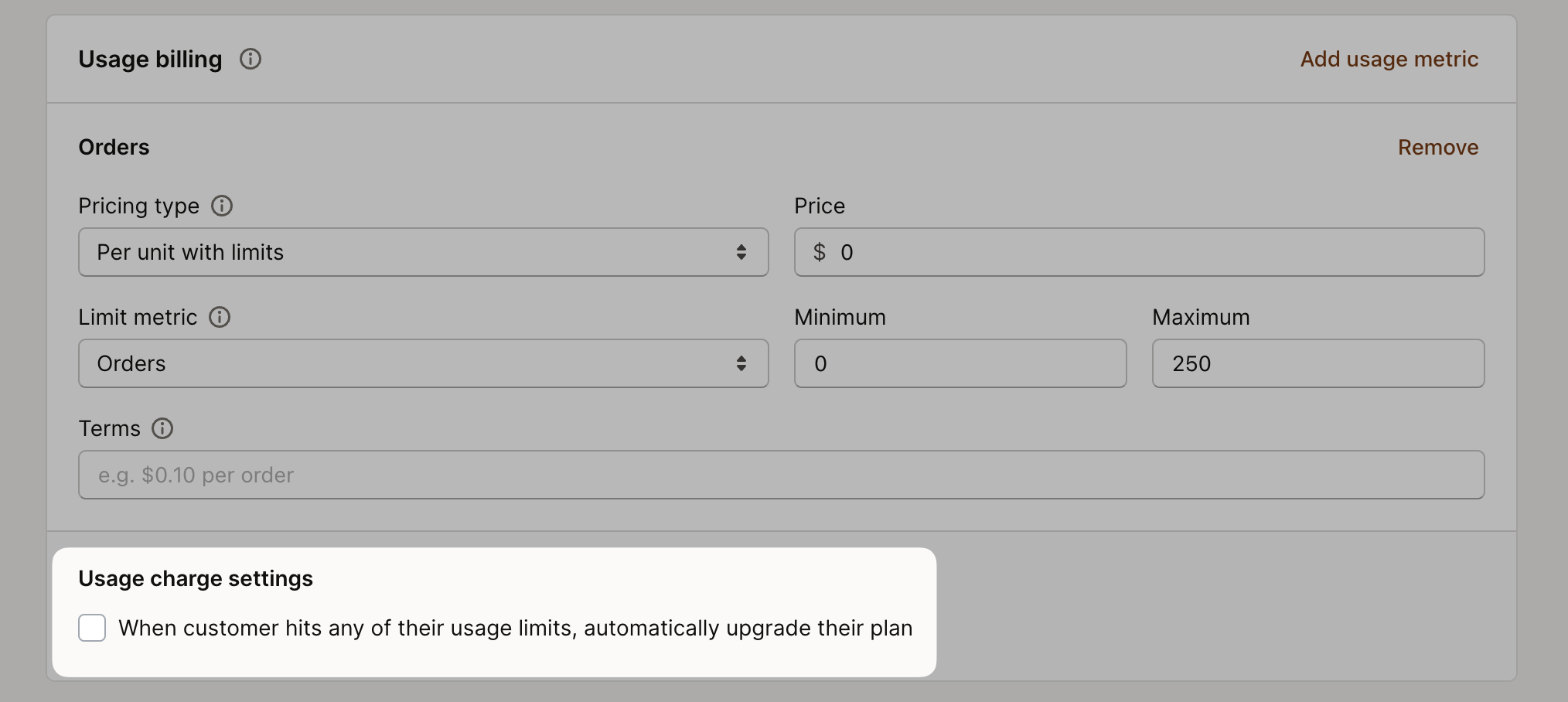
Then simply select the flex billing-enabled plan you want the customer to upgrade to once they reach the threshold set for the current plan:
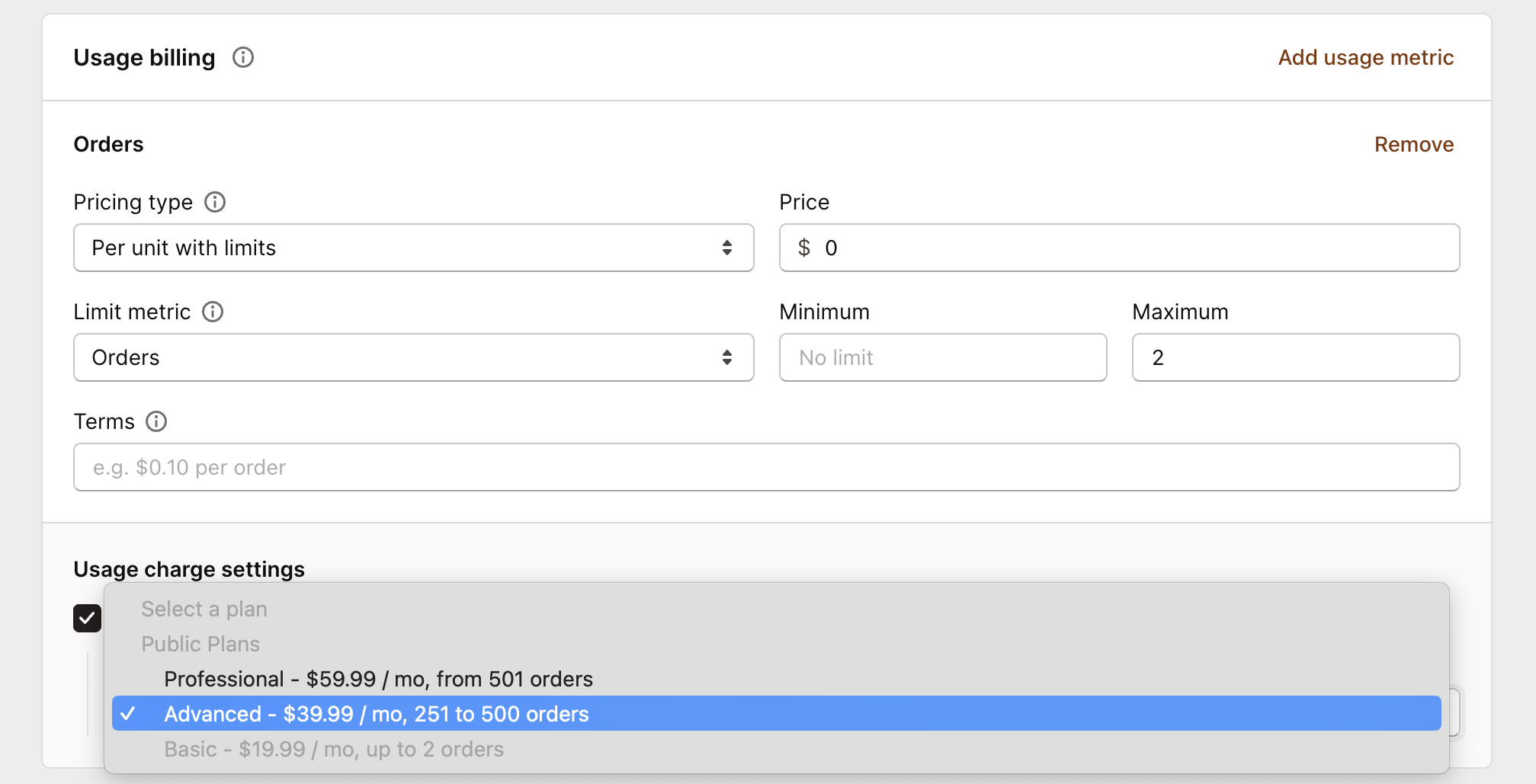
Click Save. Next we can enable the same setting to set the upgrade from the Advanced plan to the Professional plan.
Great! - these plans are now set up with flex billing. If a customer selects a plan:
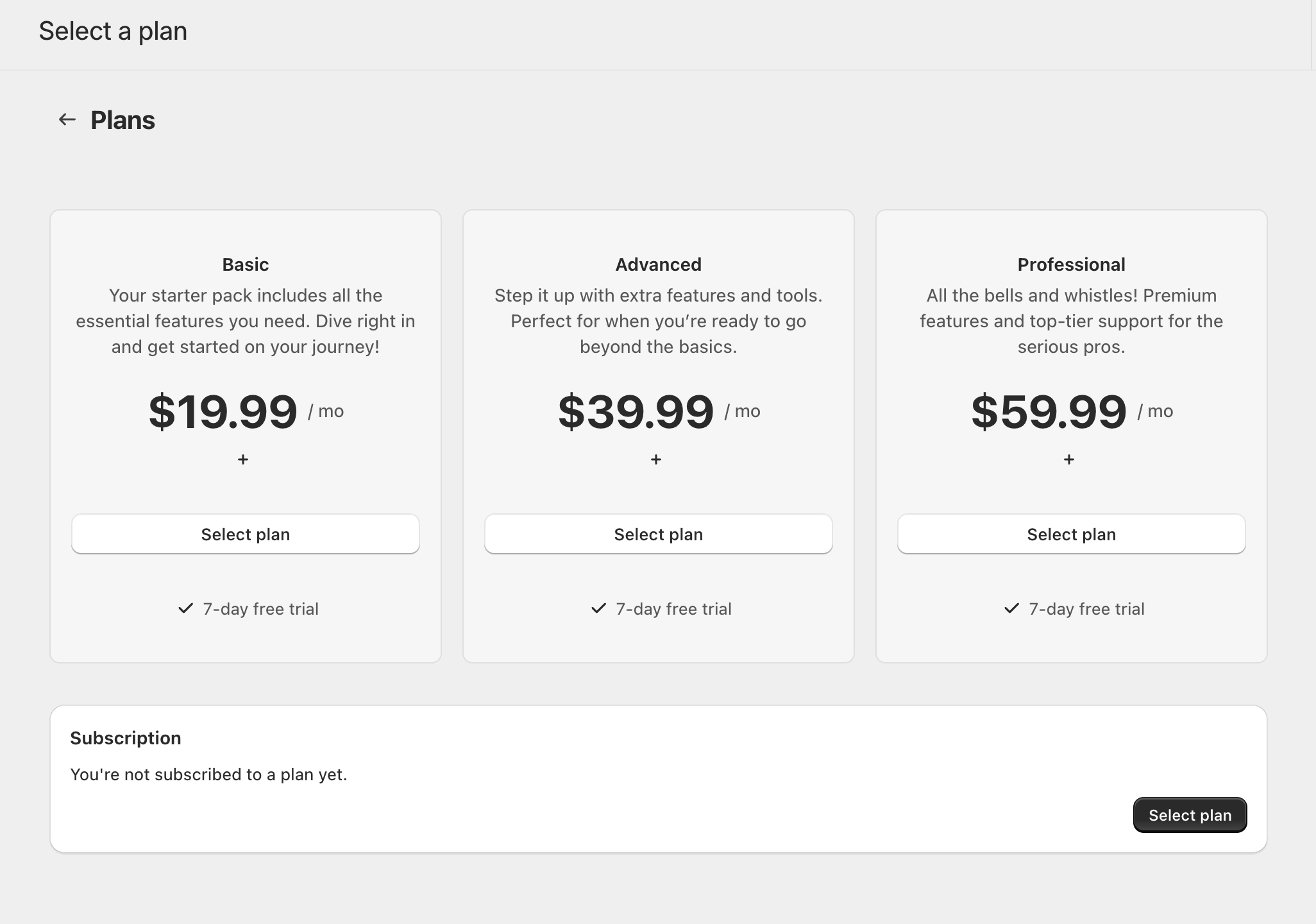
they’ll see the Shopify charge approval screen but it will have the additional charge information you added to your plan:
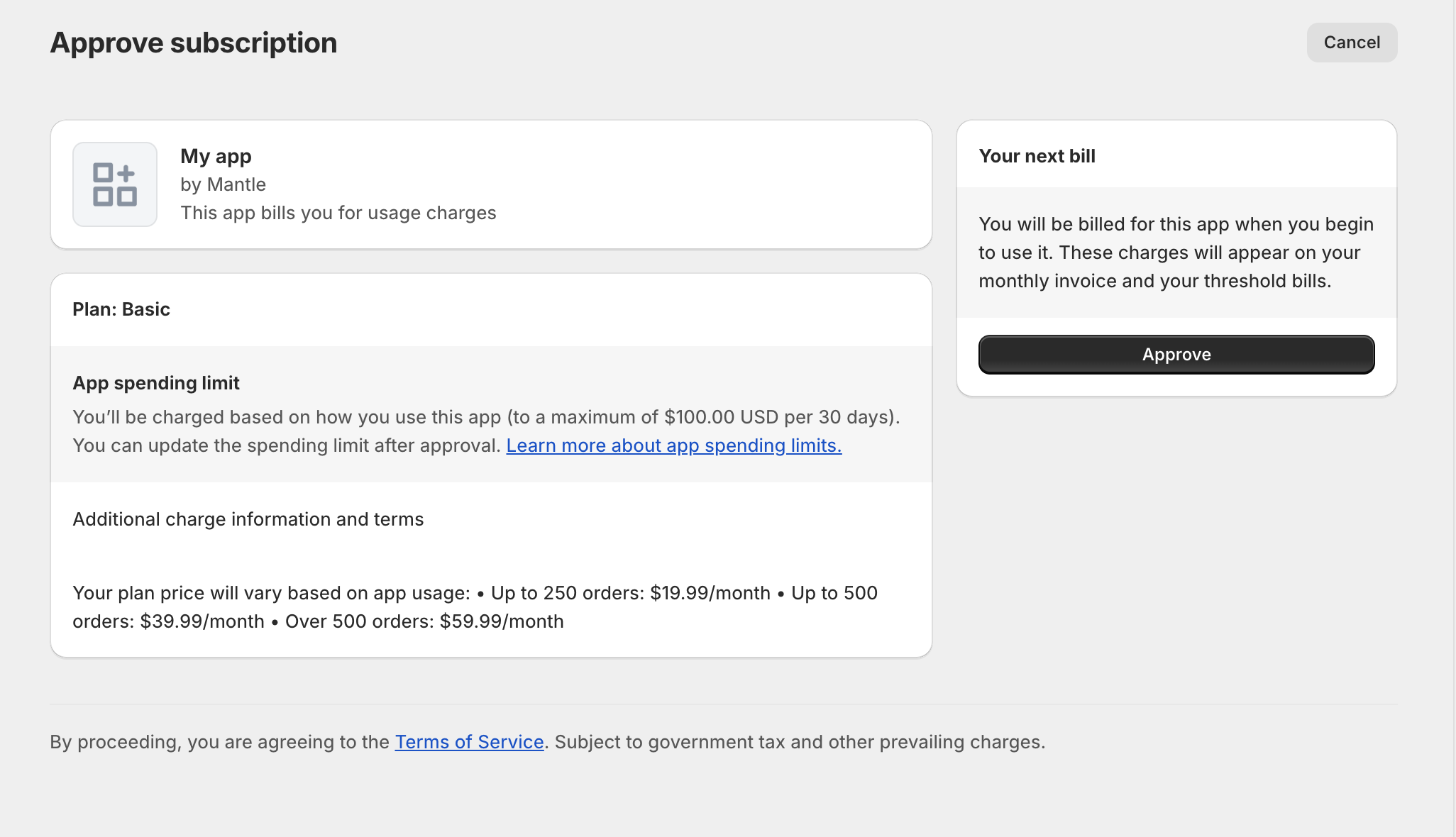
Once accepted, the customer will be subscribed to a flex billing plan and automatically upgraded to a new plan once they meet the usage threshold you’ve set.
The customer won’t need to accept the new charge since they’ve already agreed to the capped amount.
Important considerations
Use the same capped amount across all flex billing plans
Trials are tracked but won’t trigger upgrades
Charges occur immediately upon plan changes
Price differences are prorated automatically
Downgrading customers on flex billing
Flex billing makes automatic upgrades seamless. For downgrades, timing them with your customer’s billing period ensures the smoothest experience.
Why timing matters
Since flex billing automatically upgrades customers based on their usage metrics, you can’t simply downgrade a customer to a lower tier whenever you want. Here’s why:
If you downgrade a customer mid-cycle while their usage is still above the lower tier’s threshold, the auto-upgrade system will immediately kick in and move them back to the higher tier. This happens because the usage metrics haven’t reset yet.
When to downgrade
The ideal time to downgrade a customer is at the beginning of their next billing period when usage metrics reset. At this point:
Usage counters start fresh at zero
The customer won’t immediately trigger an auto-upgrade
They can grow into their usage naturally on the lower tier
The mid-cycle downgrade experience
If you downgrade a customer before their usage resets at the next billing period, an auto-upgrade could occur if their current usage still qualifies them for the higher tier.
How to downgrade
To downgrade a customer, you can use the normal subscribe endpoint to switch them to a lower tier plan, or do it directly from the Mantle UI.
If you downgrade after the customer has already been charged for their next billing cycle, they’ll receive a prorated credit for the price difference.