

Setting up Google Analytics 4 with BigQuery
Want to understand what happens before someone installs your app? Connecting Google Analytics 4 and BigQuery to Mantle lets you track the discovery and installation process - from how merchants find your app listing through to installation and subscription.
Once connected, you’ll get access to:
Traffic source attribution to see where your visitors come from
Funnel analysis to watch how they convert
Affiliate auto-attribution to track those referrals
You’ll see which traffic sources bring your best customers, what search terms drive quality installations, and how different segments convert from discovery to install and subscription.
Here’s how to get everything set up, broken down into simple steps.
Step 1: Set up GA4 tracking
Already have GA4 set up for your app? Feel free to skip to Step 2.
If you’re starting fresh, you’ll need to set up Google Analytics 4 tracking for your app listing. Follow Shopify’s official guide. Once done, do a test install and check GA4’s Realtime reports to make sure everything’s working.
Step 2: Set up BigQuery
Now let’s set up BigQuery. If you’re already using BigQuery with GA4, jump to Step 3!
Get your Google Cloud account sorted
Head over to Google Cloud Console
Either create an account or sign in
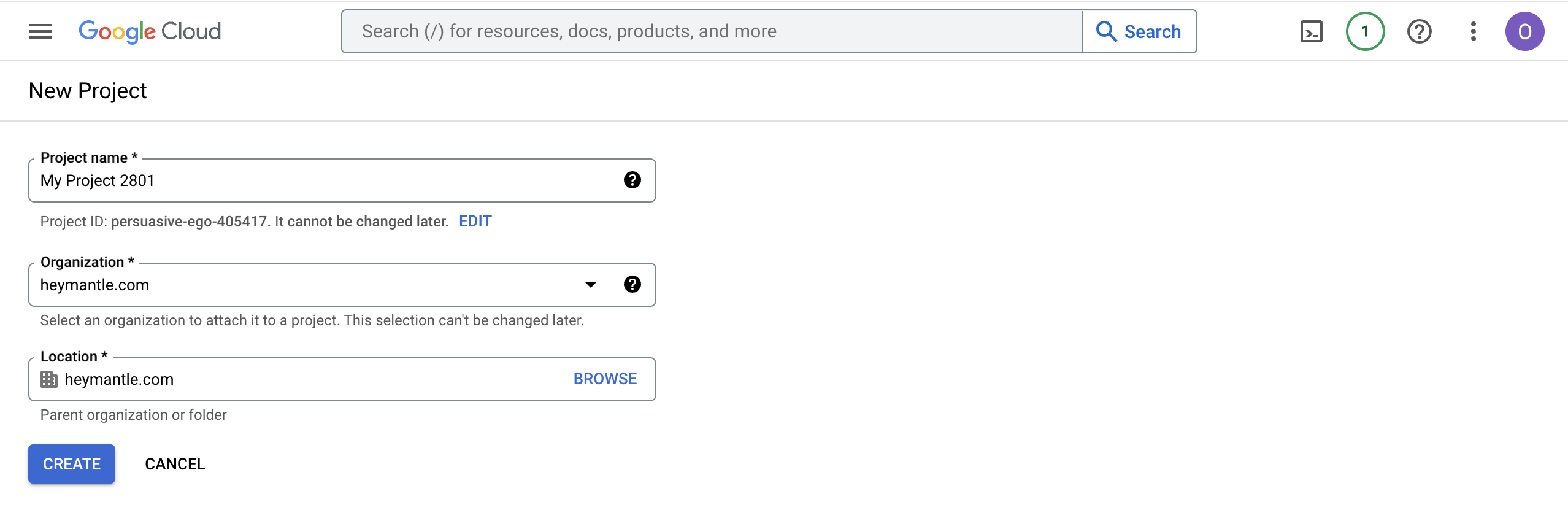
Create your project
Look for Select a project at the top
Click New Project
Give it a memorable name (like “MyApp-Analytics”):
Connect GA4 to BigQuery
Use the search bar - just type BigQuery:
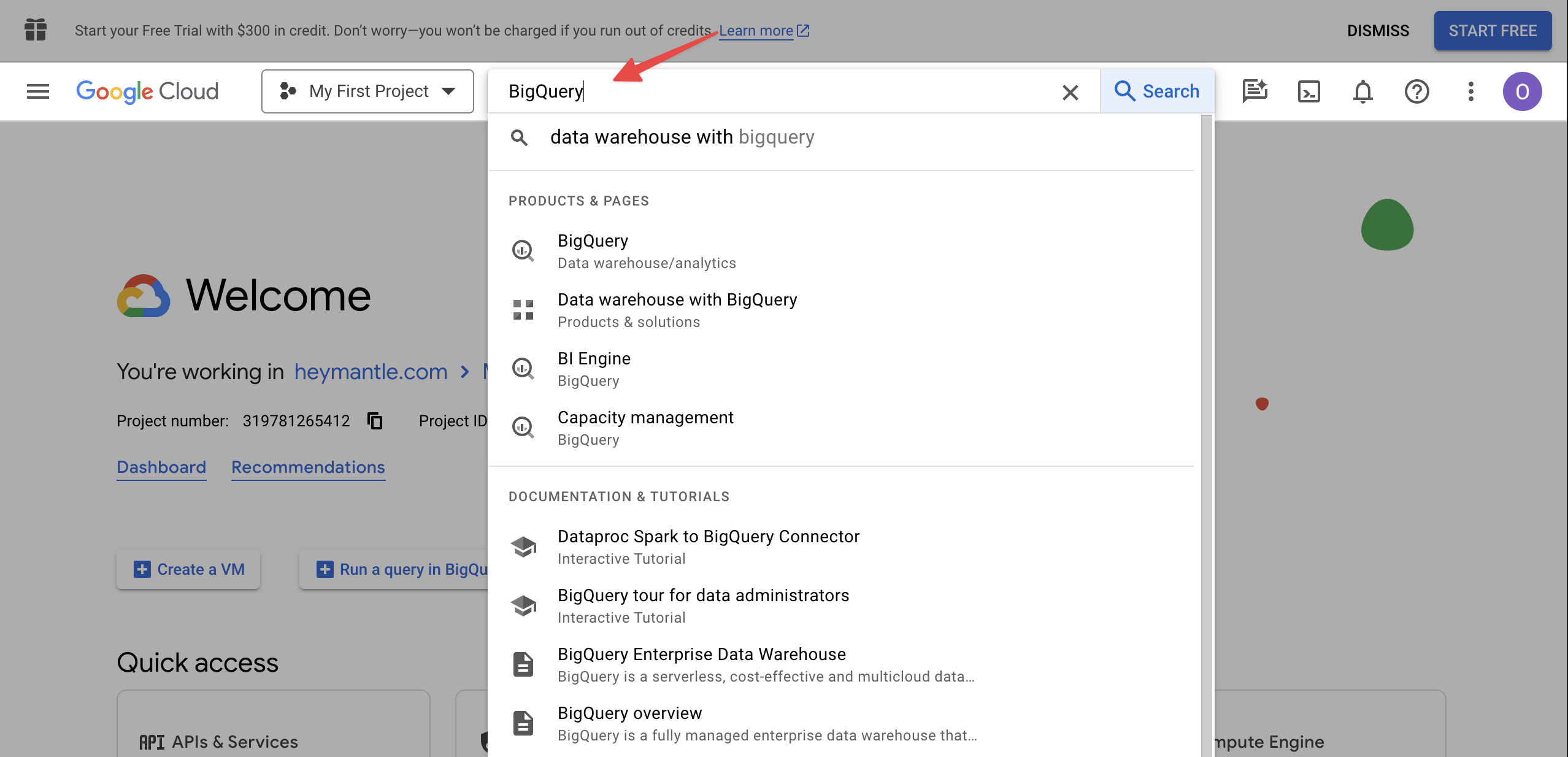
Click through to set it up
You’ll likely see a Sandbox icon - this means some features are limited:
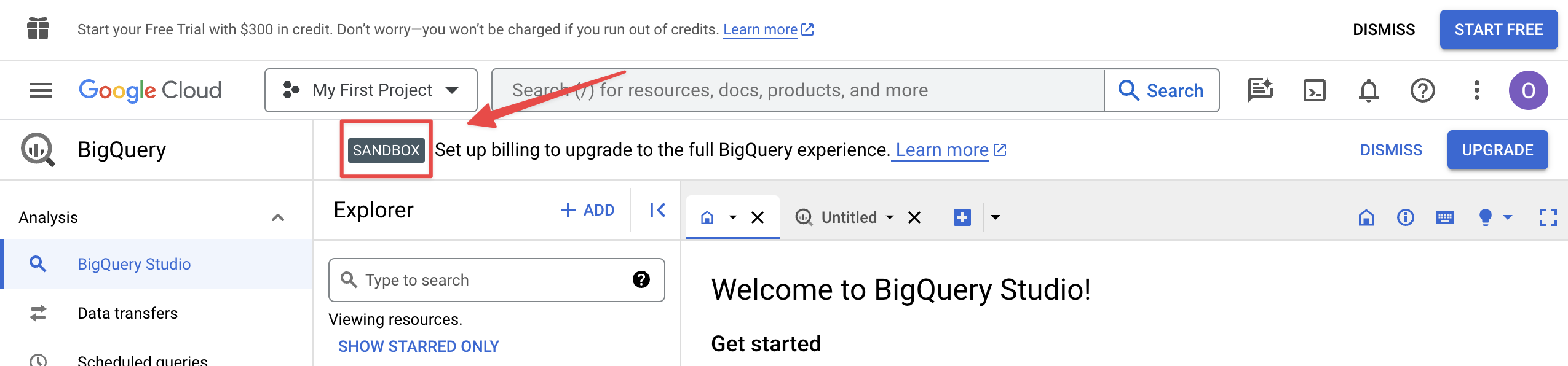
To remove the Sandbox mode:
Click Start Free to begin the free trial:
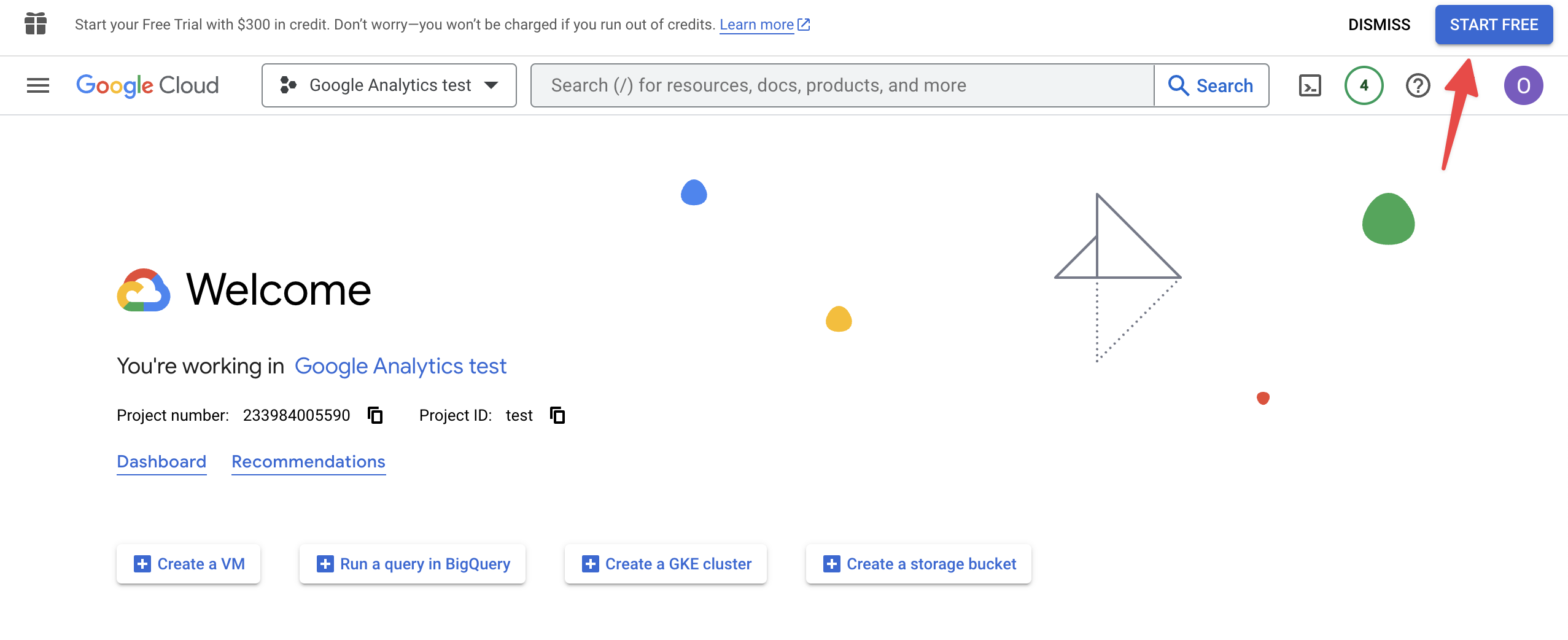
Add a billing account with a valid credit card
Once billing is set up, you’ll have full access to BigQuery features
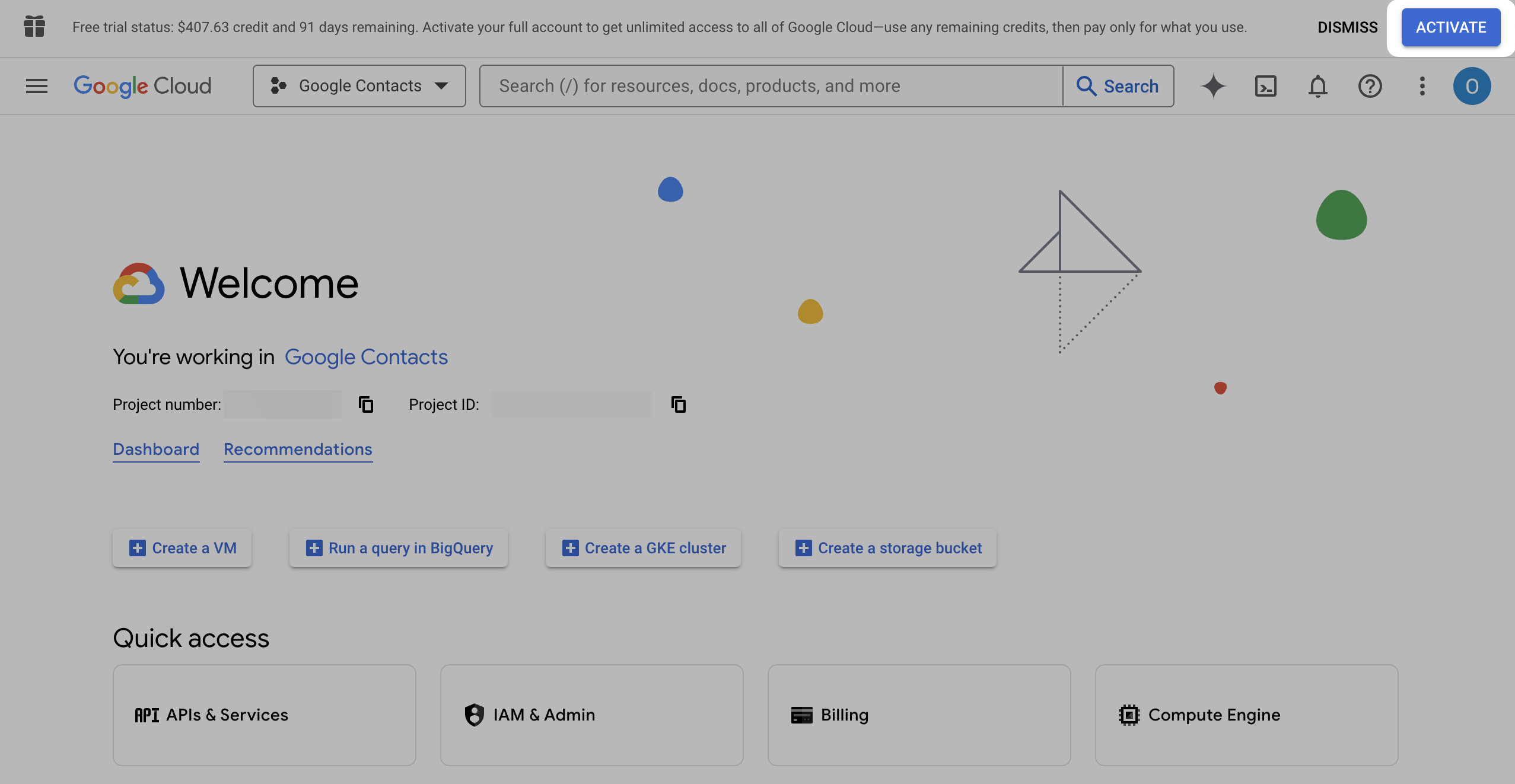
Important: To avoid any interruptions in service from your BigQuery account, make sure to activate the account as well:

Step 3: Connect GA4 to BigQuery
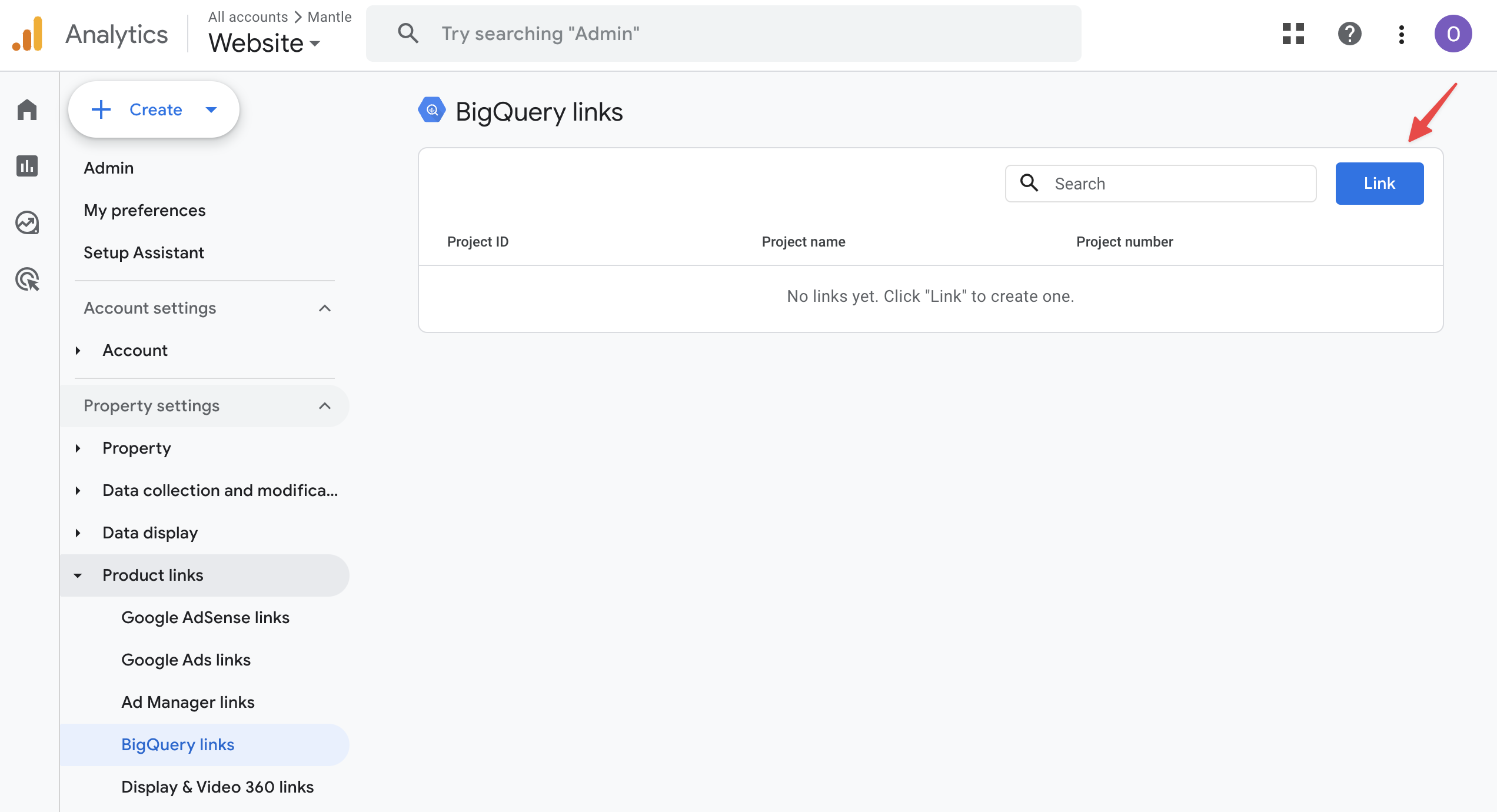
Back in GA4, find your way to Admin
Search for BigQuery links:
Pick your new project:
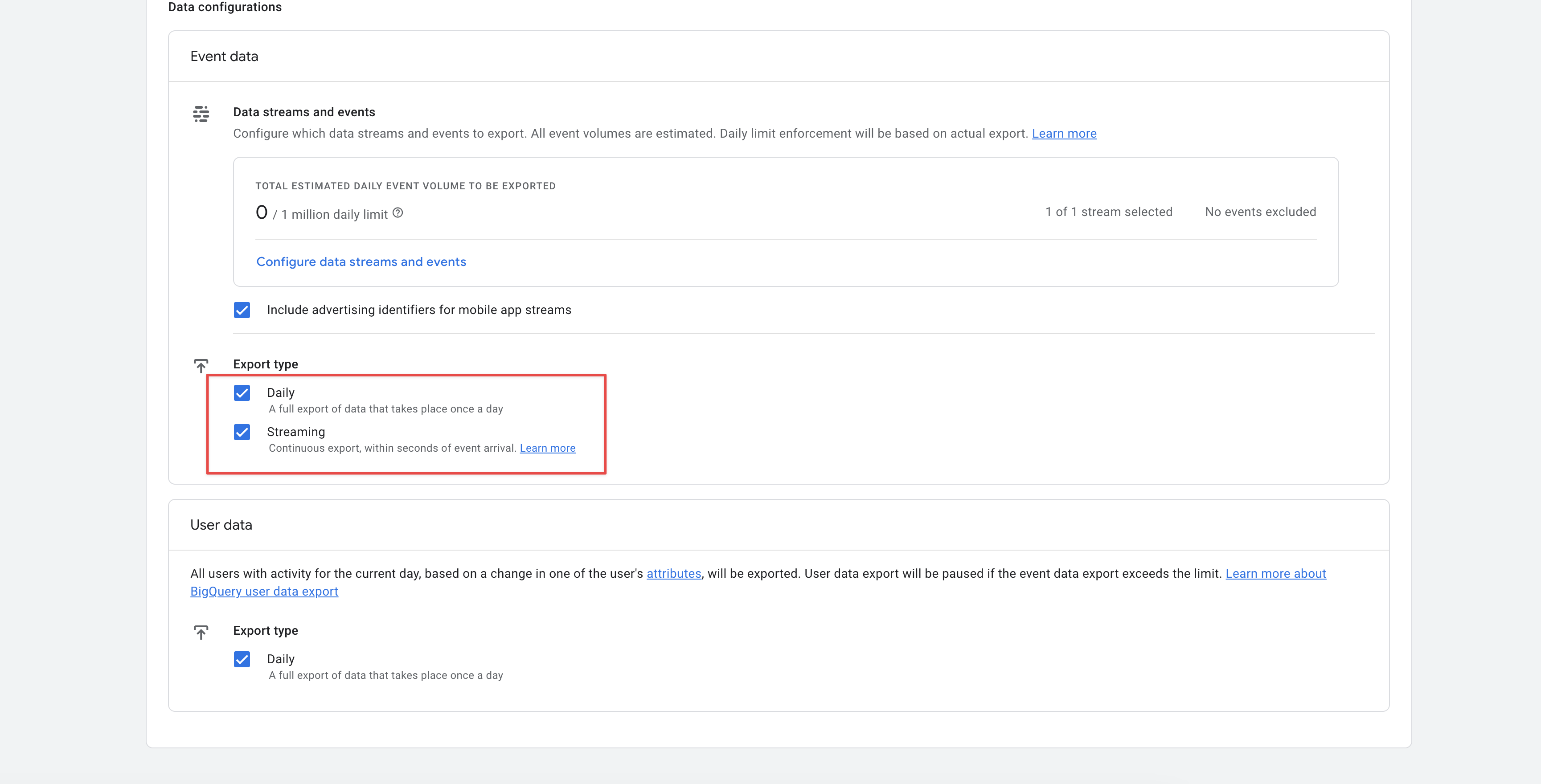
Enable both Daily and Streaming exports:
You’ll know you’re set when you see that active BigQuery link in your GA4 settings.
Step 4: Grant Mantle access
Now that BigQuery’s all set up, let’s make sure Mantle can see your data:
Find the IAM settings
Head to Google Cloud Console IAM Manager
Make sure you’re in the right project (check the dropdown if you’re not sure)
Let’s add Mantle to the mix
Click the Grant access button
Here’s Mantle’s service account:
[email protected]Mantle needs two roles:
BigQuery Data Viewer (so we can see your data)
BigQuery Job User (so we can process it)
Step 5: Connect everything in Mantle
Almost there! Let’s tie it all together:
Grab your Project ID
It’s right there in your Google Cloud dashboard:
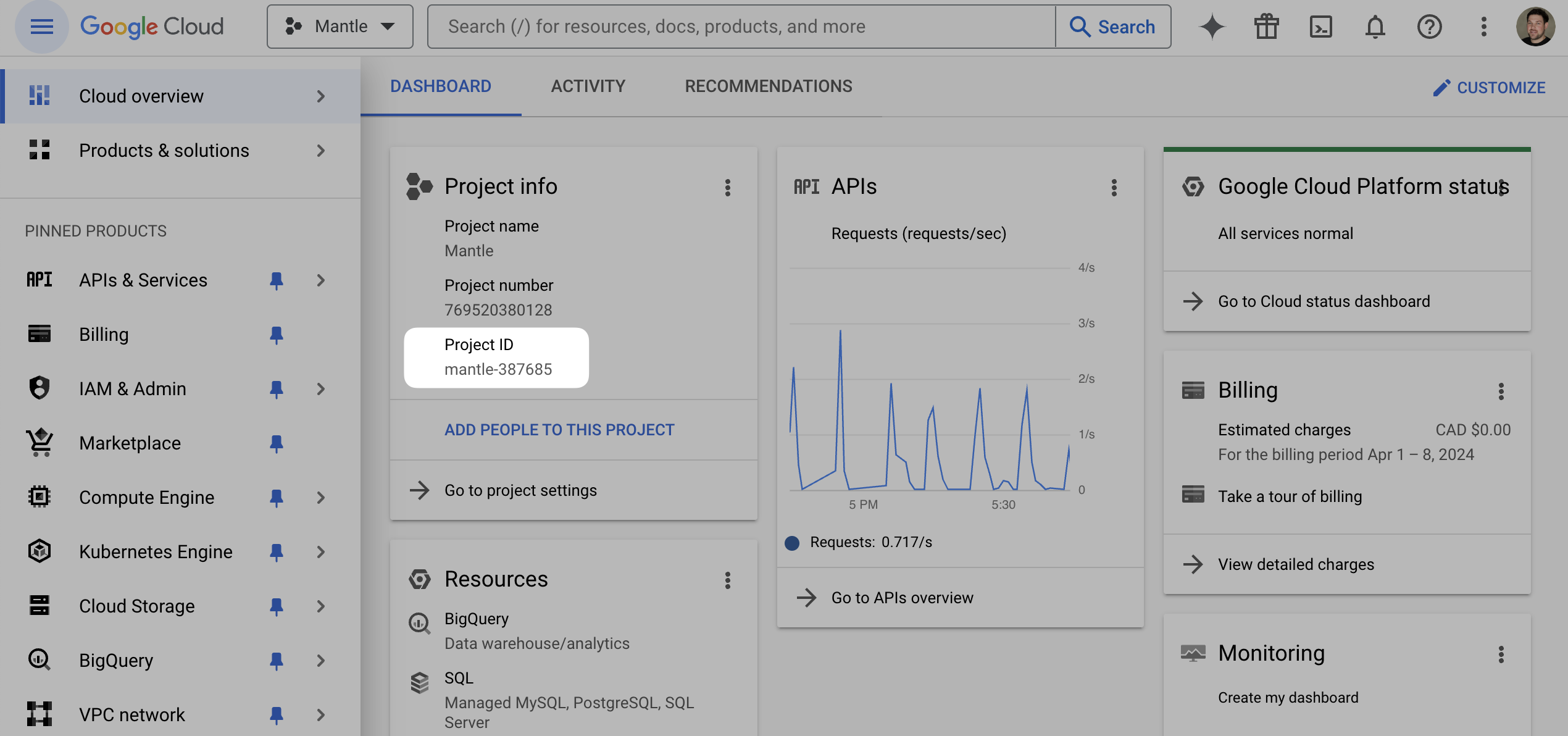
Usually at the top of the page
Hook it up to Mantle
In Mantle, go to Settings → Integrations:
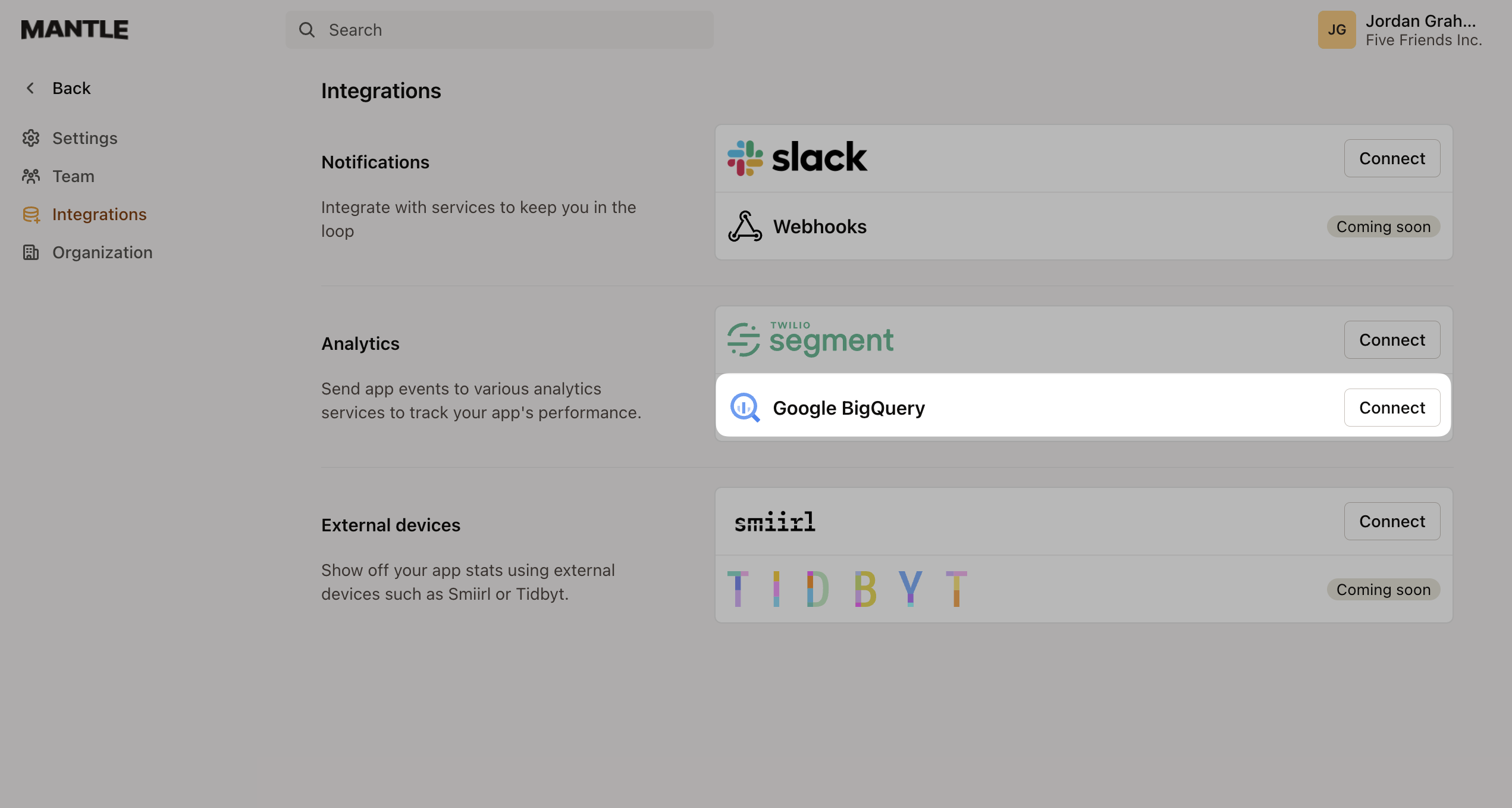
Find the Google BigQuery section
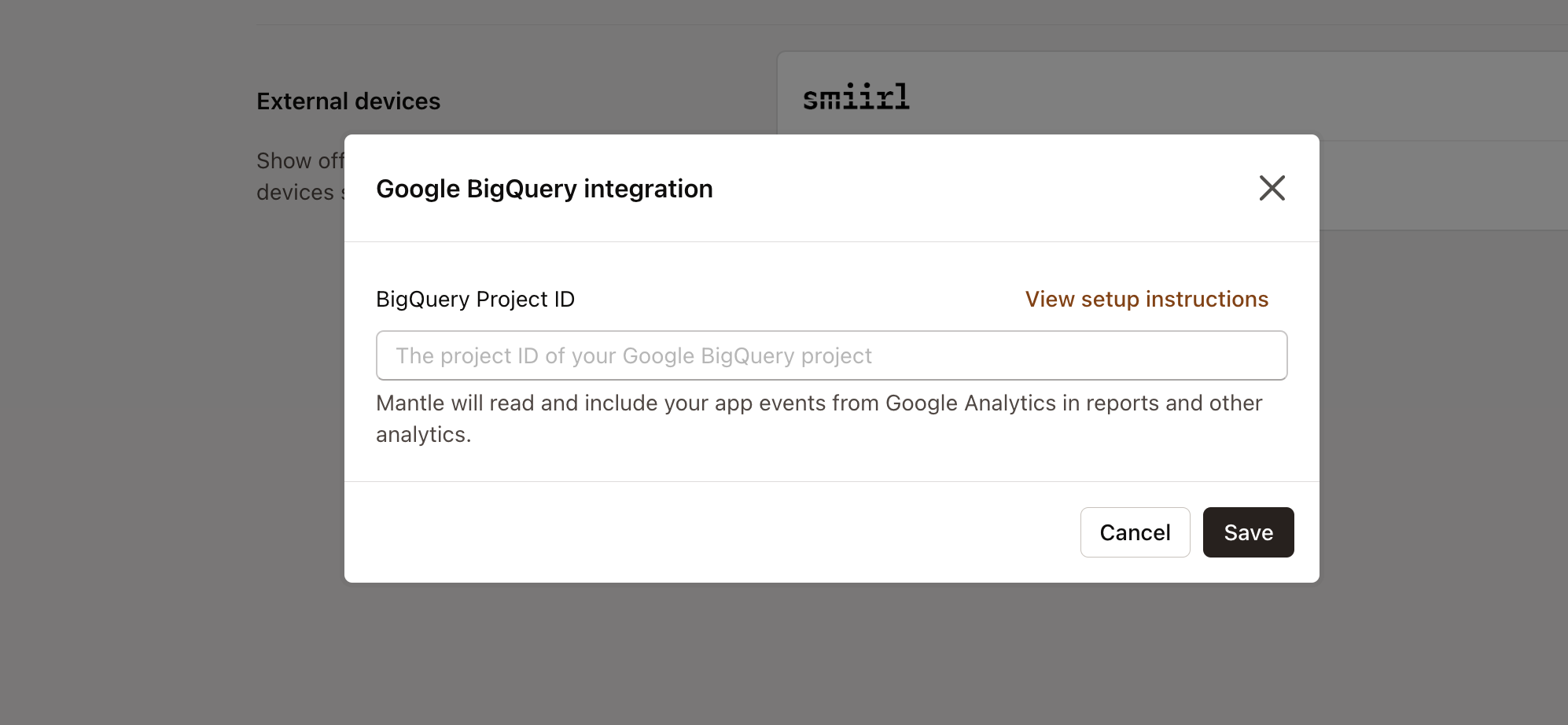
Click Connect
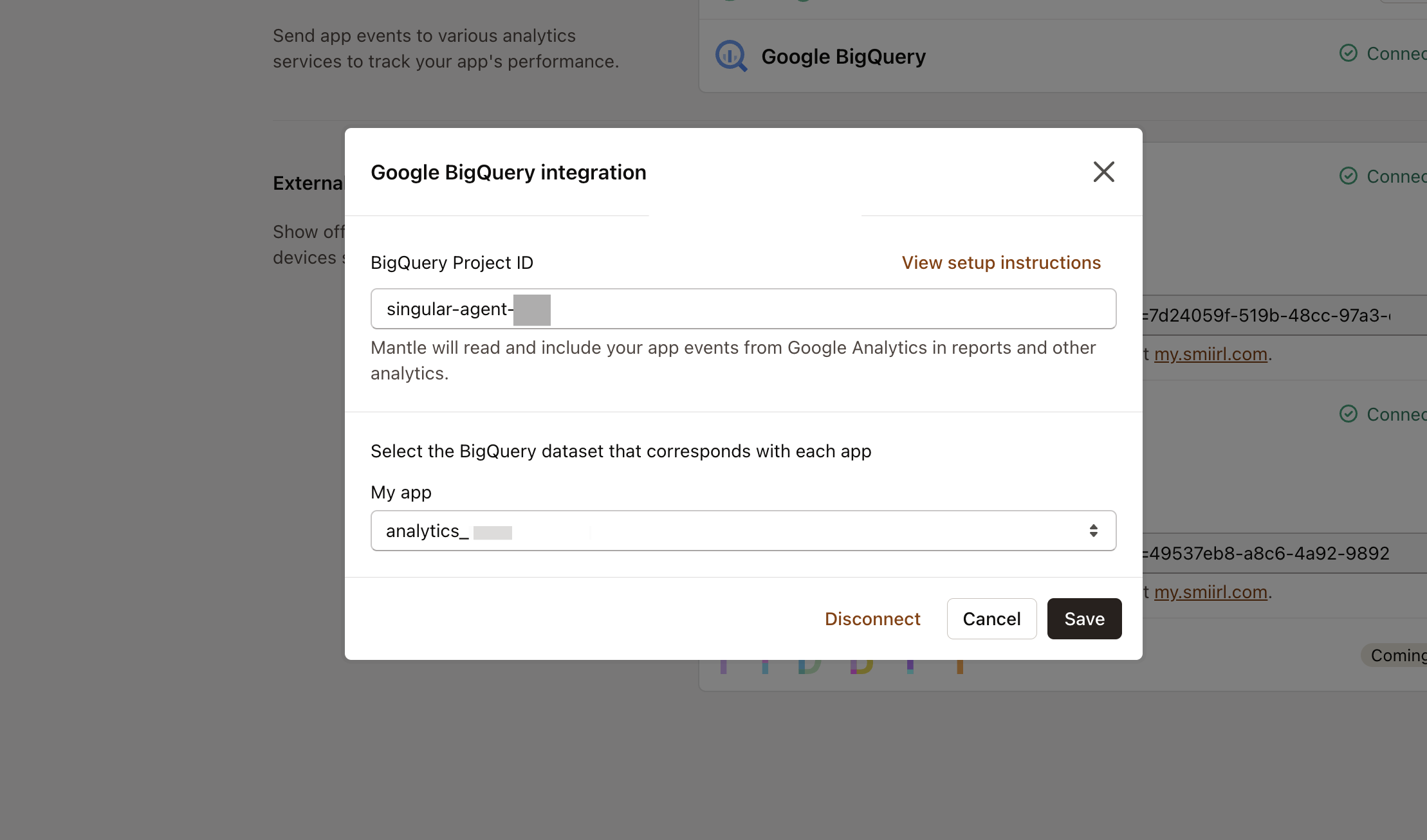
Put in your Project ID:
Pick your GA dataset from the dropdown:
Running multiple apps?
Got more than one app? No problem:
Set up separate GA4 properties for each app (keeps things clean)
Connect them all to the same BigQuery project (or use multiple projects if you prefer)
Each app’s data stays separate while being managed from one place
What happens next?
Here’s what to expect after setup:
BigQuery will start pulling in new GA4 data within 24 hours
Note that BigQuery only syncs data from the time you link it from GA4 and does not backfill historical data