

Importing customer data with CSV
Mantle’s CSV import is a powerful tool for adding and updating customer data without any development work. Whether you’re importing directly from Shopify, adding tags in bulk, or bringing in contact data from HubSpot or Salesforce, the process is straightforward.
Export your current merchants
For each of the apps you have already synced with Mantle, you can export a CSV of your current merchants from the Shopify Partner dashboard. This exported CSV will include additional information about each merchant, including each merchant’s:
Shopify plan
Shop country
Contact email
To export your current merchants, navigate to the Apps tab in the left sidebar of the Shopify Partner dashboard. From the list, select the app for which you would like to export your current merchants. Then, click the Export button in the top right corner of the page, and then Export current merchants. This will send you an email with a CSV containing a merchant list for your app. See the image below for reference.

Upload your CSV to Mantle
Once you receive the exported file in your inbox, you can upload it to Mantle. Navigate to the Customers tab in the left sidebar of the Mantle dashboard. Then, click the Import button in the top right corner of the page.
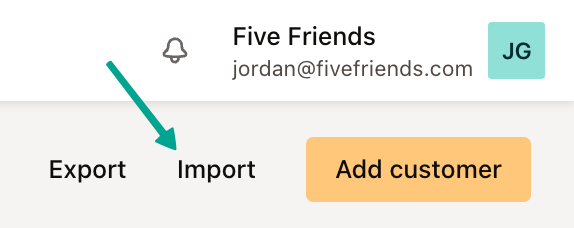
This will open a modal where you can drag and drop, or select your your CSV file.
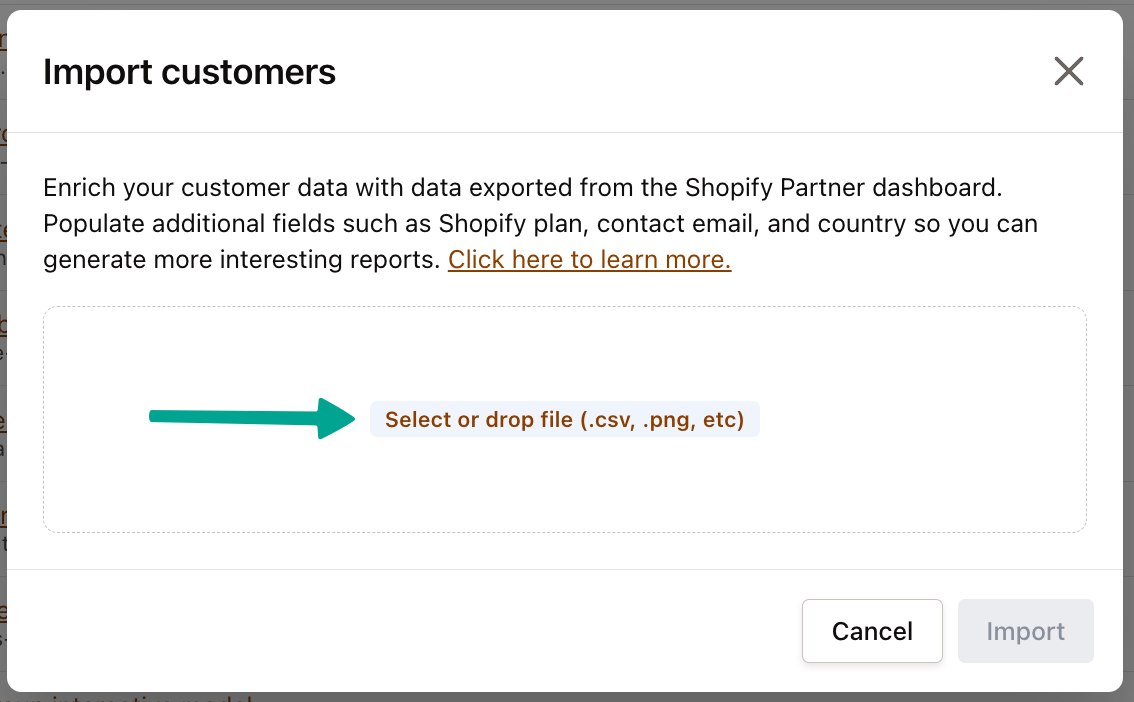
Once you’ve uploaded your CSV, click the Import button to begin processing your file - this can take a few minutes, so be patient!

Once the import is complete, your customer list will be enriched with the additional information such as Shopify plan, shop country, and contact email.
Understanding import types
Mantle automatically detects the type of import you’re performing based on the columns in your CSV file. The system checks for required fields in this order:
Shopify customer import
Bulk tags import
HubSpot contacts import
Account owner import
Salesforce data import
Shopify customer import
Use this import type to add new customers or update existing ones with Shopify store data.
Required columns
Shop domain or Shop Domain: The myshopify.com domain (e.g., your-store.myshopify.com)
Shop email or Shop Email: The store owner’s email address
Optional columns
Shop name or Shop Name: The store’s display name
Shop country or Shop Country: The country where the store is located
Shop plan or Shop Plan: The Shopify plan the store is on
You can export this data directly from your Shopify Partner dashboard as shown above, or create your own CSV with these columns. If you’re updating existing customers, any new information will override the current data in Mantle.
Bulk tags import
This import type allows you to quickly add or replace tags for multiple customers at once.
Required columns
Shop domain or Shop Domain: The myshopify.com domain
Optional columns (at least one required)
Add tags: A comma-separated list of tags to add to the customer
Replace tags: A comma-separated list of tags that will replace all existing tags
When using Add tags, the new tags are merged with existing ones. With Replace tags, all current tags are removed and replaced with the ones you specify.
HubSpot contacts import
This import type allows you to add contacts to existing customers in Mantle.
Required columns
Add contacts: Set to any value (e.g., “yes”) to indicate this is a contacts import
Shop domain or Shop Domain: The myshopify.com domain
First Name: The contact’s first name
Email: The contact’s email address
Optional columns
Last Name: The contact’s last name
Phone Number: The contact’s phone number
Label: A label to categorize the contact (e.g., “Marketing”, “Technical”)
This import associates new contacts with existing customers in Mantle, making it easier to manage multiple points of contact for each store.
Account owner import
This import type allows you to add account owners for existing customers in Mantle. It will only add new account owners if they don’t already exist - it won’t update existing account owners.
Required columns
Owner: The account owner’s email address on file
Required identifiers (at least one required)
Shop domain: The myshopify.com domain
Customer email: The customer’s email address
Shop ID: The unique Shop ID
Mantle ID: The unique Mantle customer ID
Optional columns
Type: The type of account owner. Accepted values are “sales”, “customer_support”, or “account_manager”. If no type is specified or an invalid type is provided, it will default to “account_manager”.
You must include the Owner column along with at least one of the identifier columns to match the customer record you want to update.
Salesforce data import
This import type brings Salesforce account and contact data into Mantle.
Required columns
Account Name: The name of the Salesforce account
At least one of the following identifiers:
Shopify Shop ID: The unique Shopify ID for the store
Myshopify Domain: The myshopify.com domain
Optional columns
Email: The primary email address for the account
ID: The Salesforce Account ID
For more detailed instructions on exporting data from Salesforce, see the section below.
Exporting from Salesforce
Within Salesforce, navigate to Reports and create a new report. From the All category, select Contacts & Accounts as the report type.
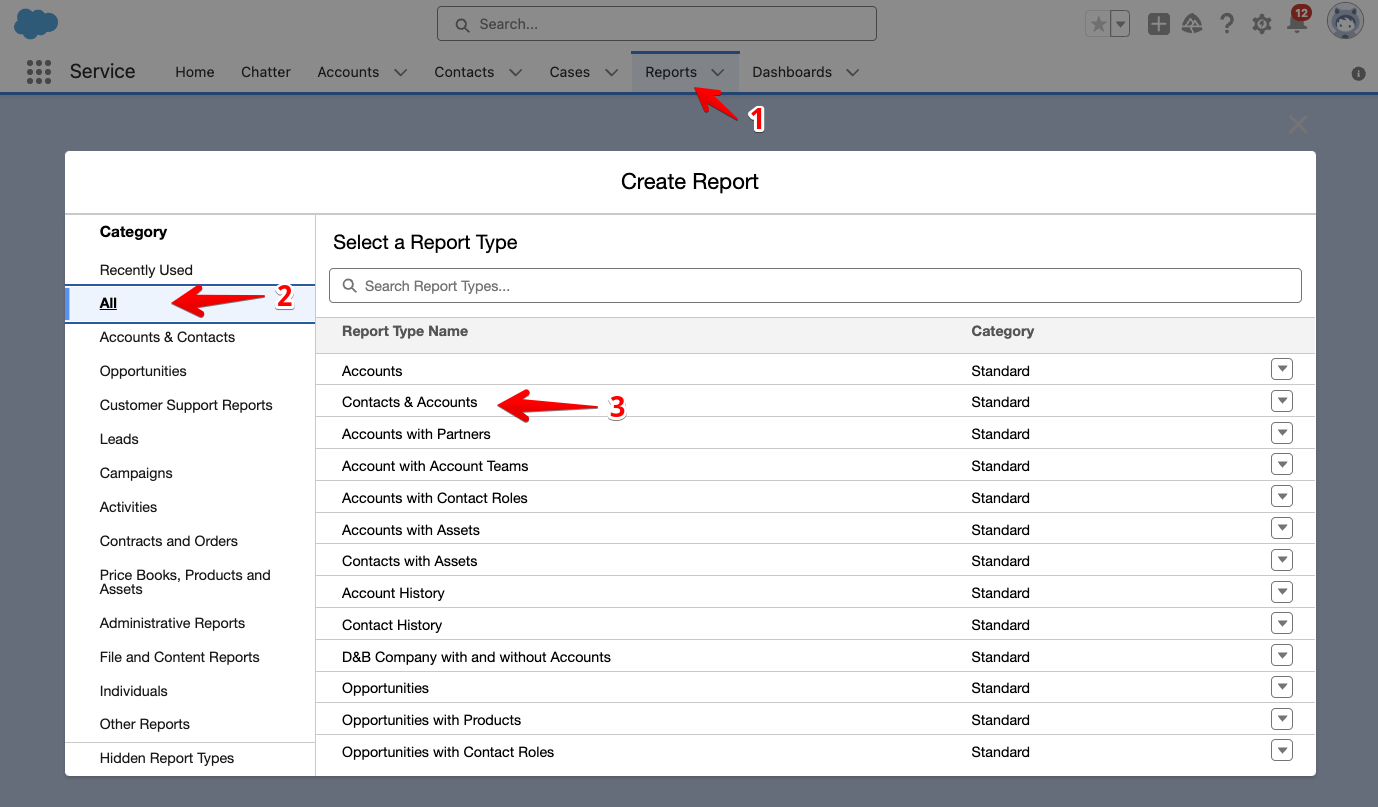
Add the following fields to the report:
Account ID
Contact ID
Account Name
Myshopify Domain or Shopify Shop ID (one is required for matching)

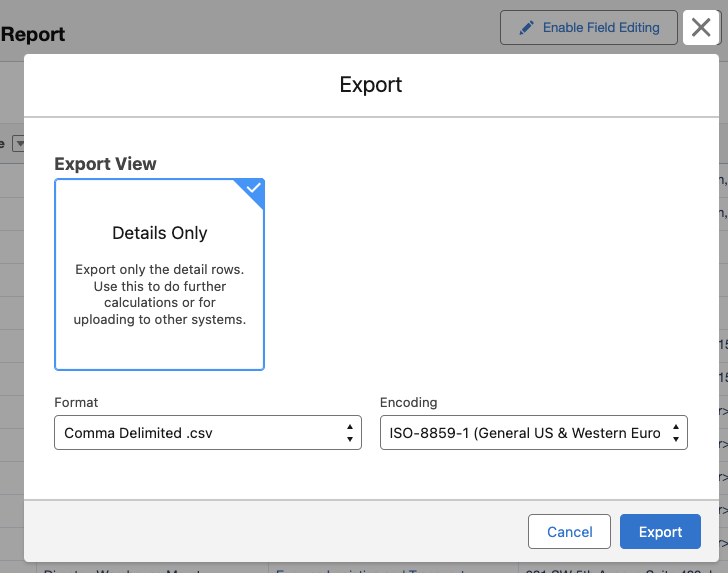
Once you’ve added all the fields, click Run and then in the dropdown beside Edit, select Export to download the CSV.
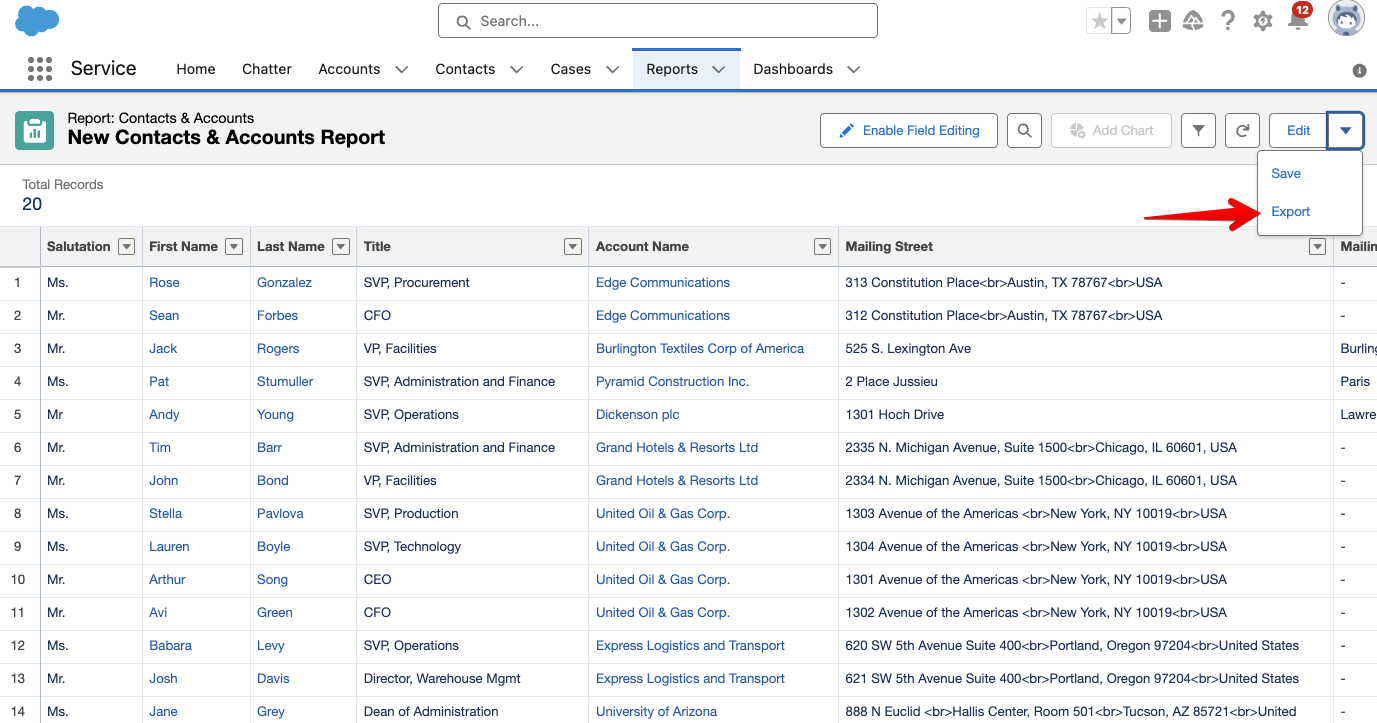
Select Details Only and CSV as the file format. Then, click Export.
When you’re ready, learn about how you can streamline processes like data enrichment and billing processes by integrating with Mantle.